
Importing Files from Shopify
Maintaining an organized shop and ensuring your customers have access to the latest versions of your patterns is essential to your success as a designer, and GoSadi is taking pattern management on Shopify to the next level! In this article we'll walk through the process of adding and syncing PDFs through GoSadi for a seamless and efficient Shopify experience.
NOTE: Due to Shopify limitations, your PDF files will not come over on import, but product details and listings will. You will need to upload the PDF on GoSadi or merge it with an existing GoSadi listing that has a PDF.
Understanding How Shopify Files Are Managed On GoSadi
After you’ve imported your listings from Shopify, you may notice that the pattern PDF is absent. This is due to how Shopify manages files and those limitations.
When you import your patterns to GoSadi from Shopify, the original PDF file remains on the third party app you used and does not port over to GoSadi.
It is important to understand that GoSadi will now take over delivery of that third party app in how your files reach your customers. Your customers will not see any difference - it is just a matter of files being managed and sent from GoSadi instead of another third party Shopify app.
How To Prepare for Import From Shopify
Before you import from Shopify, you’ll need to do make sure of two things for your patterns.
First - Set Pattern Shipping Toggle
1. Navigate to your Shopify account, then Products
2. Look at the Shipping setting and be sure that the toggle is "off” indicating “Not a physical product”
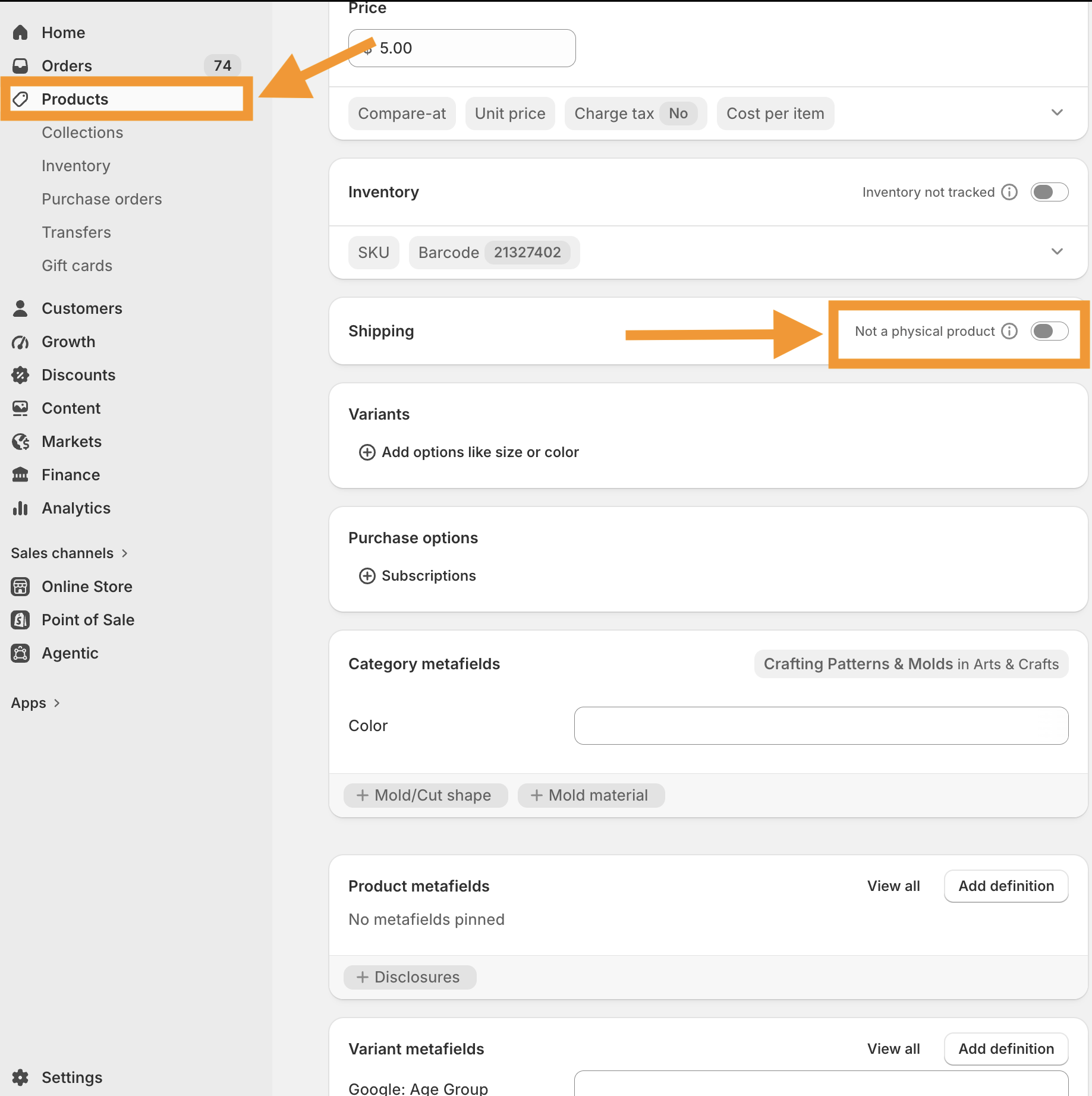
Second - Have the Pattern PDF Available for Uploading to GoSadi
For each pattern you are importing from Shopify to GoSadi, you will need to have the pattern PDF available and ready to upload to the pattern File tab after it’s been imported.
NOTE: If you offer the same pattern on a non-Etsy selling channel or previously uploaded on GoSadi, then you’ll be able to use the Merge function to merge your Shopify listing with the other selling channel listing instead of uploading the PDF to the pattern.
Adding Your Pattern PDFs
A benefit of GoSadi is that it allows you to upload PDFs to your patterns directly within the platform. You don't need to worry about manually managing files on Shopify once you’ve uploaded the PDF to the pattern listing on GoSadi.
To manage your Shopify PDFs on GoSadi:
1. Navigate to the Product Library and select the pattern you want to update
2. Click on the Files tab and upload the PDF file
3. Be sure to click Save & Continue
Shopify Selling Channel Tab
When you add a PDF to a Shopify pattern in GoSadi, you'll notice an option on the Shopify Selling Channel tab that allows you to decide whether or not to include that pattern in your Shopify sync.
Here's what you need to know:
Any pattern included in the Shopify Selling Channel tab will be automatically included in your sync
Only the files associated with the patterns on the Shopify Selling Channel tab will be synced with your Shopify shop
To explore all the features and benefits that GoSadi has to offer, visit our website today!