
How to Connect Your Fybe Account to GoSadi
IMPORTANT: Connecting GoSadi with Fybe does not count towards your GoSadi subscription total Selling Channels limit. In other words, connecting to Fybe is free!
Connecting your Fybe account to GoSadi lets you import your Fybe patterns and manage them alongside your other selling channels. You’ll need your Fybe username and an application passcode secret key to get started.
Get Your Application Passcode Secret Key
1. Navigate to Fybe and set-up a Fybe account
2. Remember your Fybe vendor username (you’ll need it to connect to Fybe from GoSadi)
3. When you set up your Fybe account, you should receive an application passcode secret key. Save it.
If you didn’t receive a Fybe secret key,, contact Fybe support and request a one for GoSadi.
NOTE: Because GoSadi and Fybe are partners, using GoSadi to connect with Fybe allows GoSadi Designers to be automatically approved as a Fybe Trusted Vendor.
Connect Your Fybe Account
1. Go to Manage Connections
2. Click on Connect underneath the Fybe logo
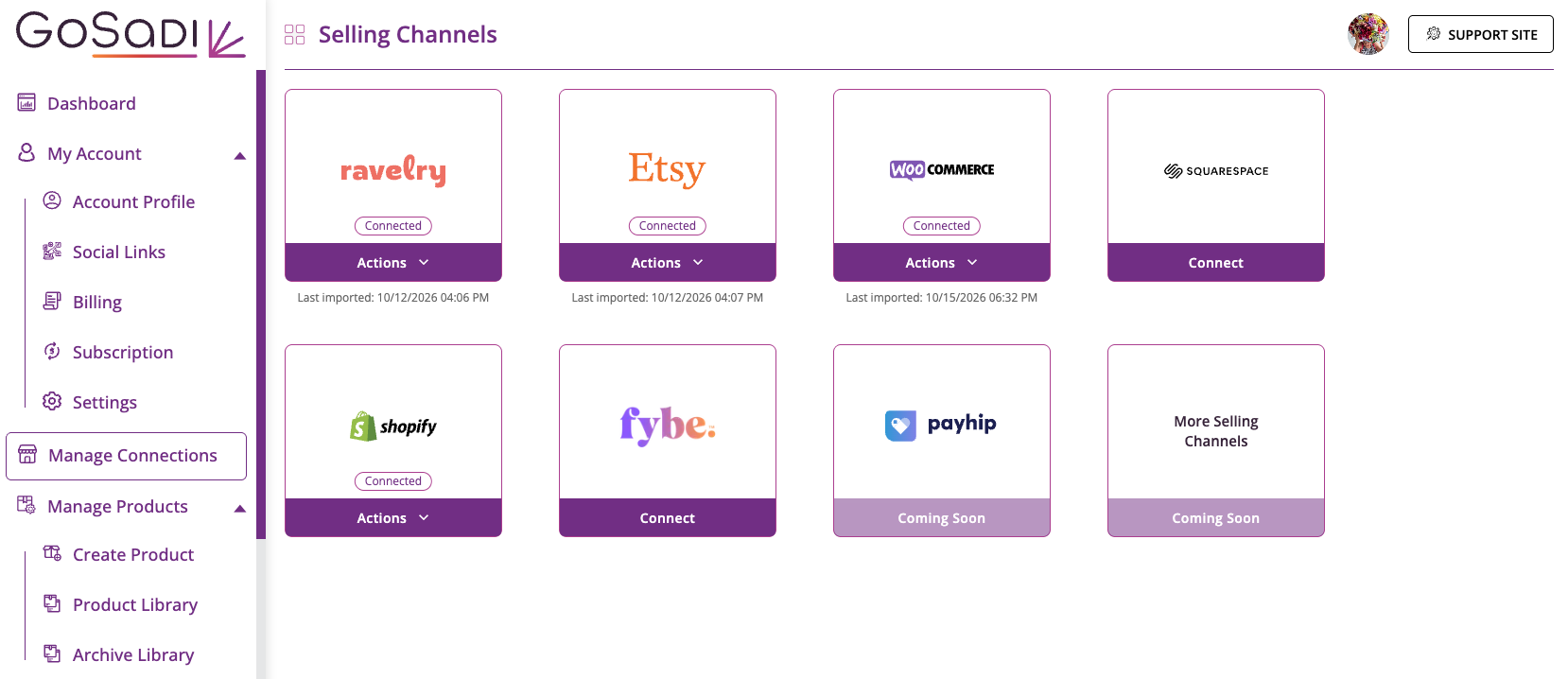
3. You’ll see a form to complete
4. Enter your Fybe username in the username field. Use the same username that appears on your Fybe account.
5. Enter your secret key in the secret key field
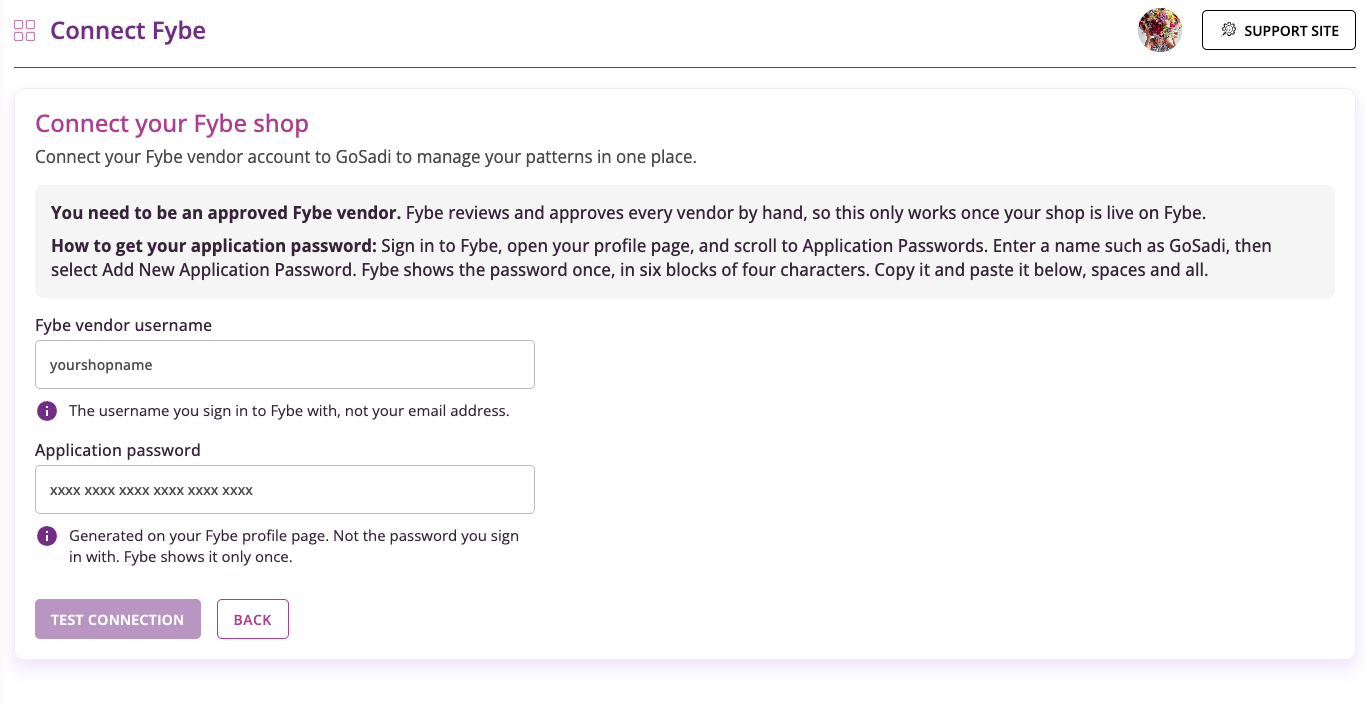
6. Click Test Connection
7. Confirm the message in the upper-right that verifies you are an approved Fybe seller vendor
8. Click Save
Your status changes from connecting to connected.
Import Your Patterns
1. Click Actions under the Fybe logo
2. Click Import Patterns
NOTE: Don’t show imported patterns on your DLP yet if you plan to merge them with listings from other selling channels. You can merge them after the import finishes.
3. Wait for your patterns to finish importing
Your imported patterns appear in your Product Library.
To explore all the features and benefits that GoSadi has to offer, visit our website today!