
Get To Know Your Product Library
Your Product Library is the central hub for managing your pattern inventory, whether you imported patterns from a selling channel or created them in GoSadi. Use the search, sorting, filtering, merge, and editing tools to keep your library organized and up to date.
Open Your Product Library
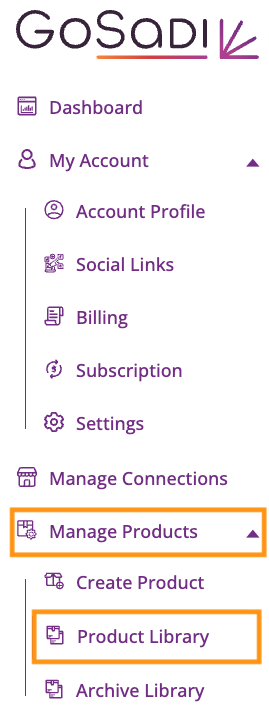
Click Manage Products in the menu
Click Product Library
Are You Connected to Etsy?
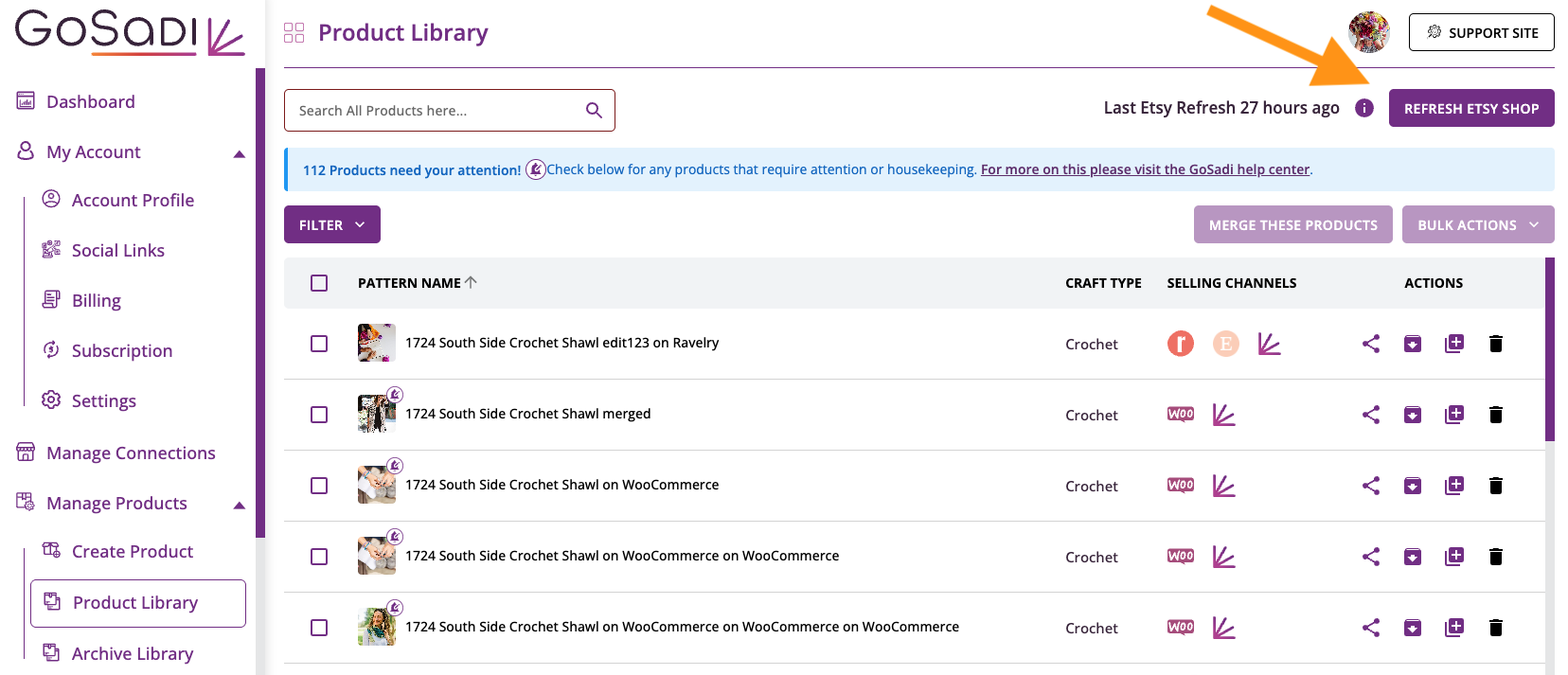
If you have connected your GoSadi account to Etsy, and if more than six (6) hours have elapsed since you last “refreshed” that connection, a REFRESH ETSY SHOP button will appear in the upper-right corner of your Product Library. This button re-establishes a fresh connection to your Etsy Shop. If it’s there, make sure to press the button, so that you can sync new or edited patterns to your Etsy shop without an issue.
Review Attention Notifications
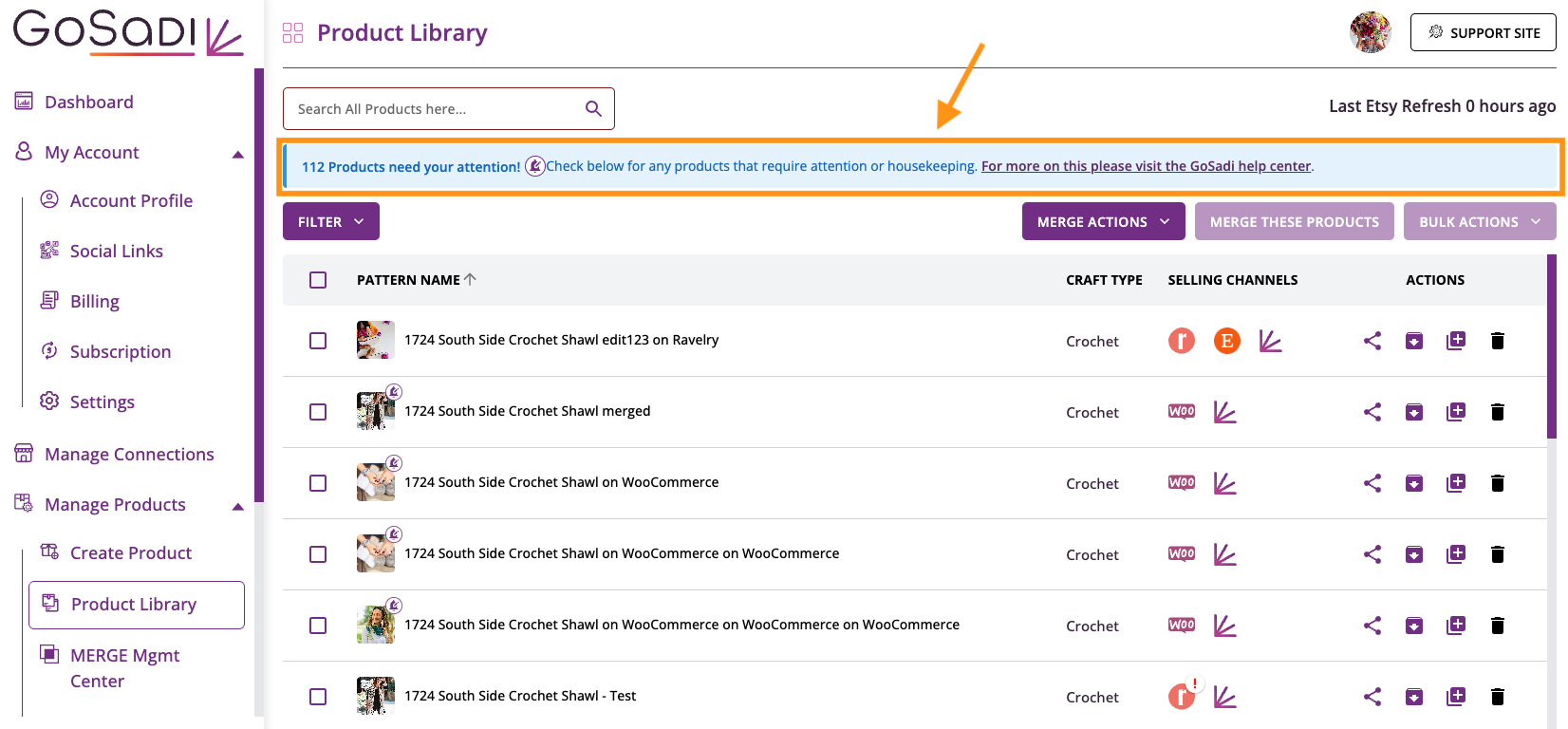
The attention notification bar appears at the top of the screen and shows the number of products that are missing information that will help optimize them for search, SEO, filtering, and overall clarification. Although filling in those details is optional, doing so will enhance your pattern information making them more searchable and optimized.
Search for Patterns
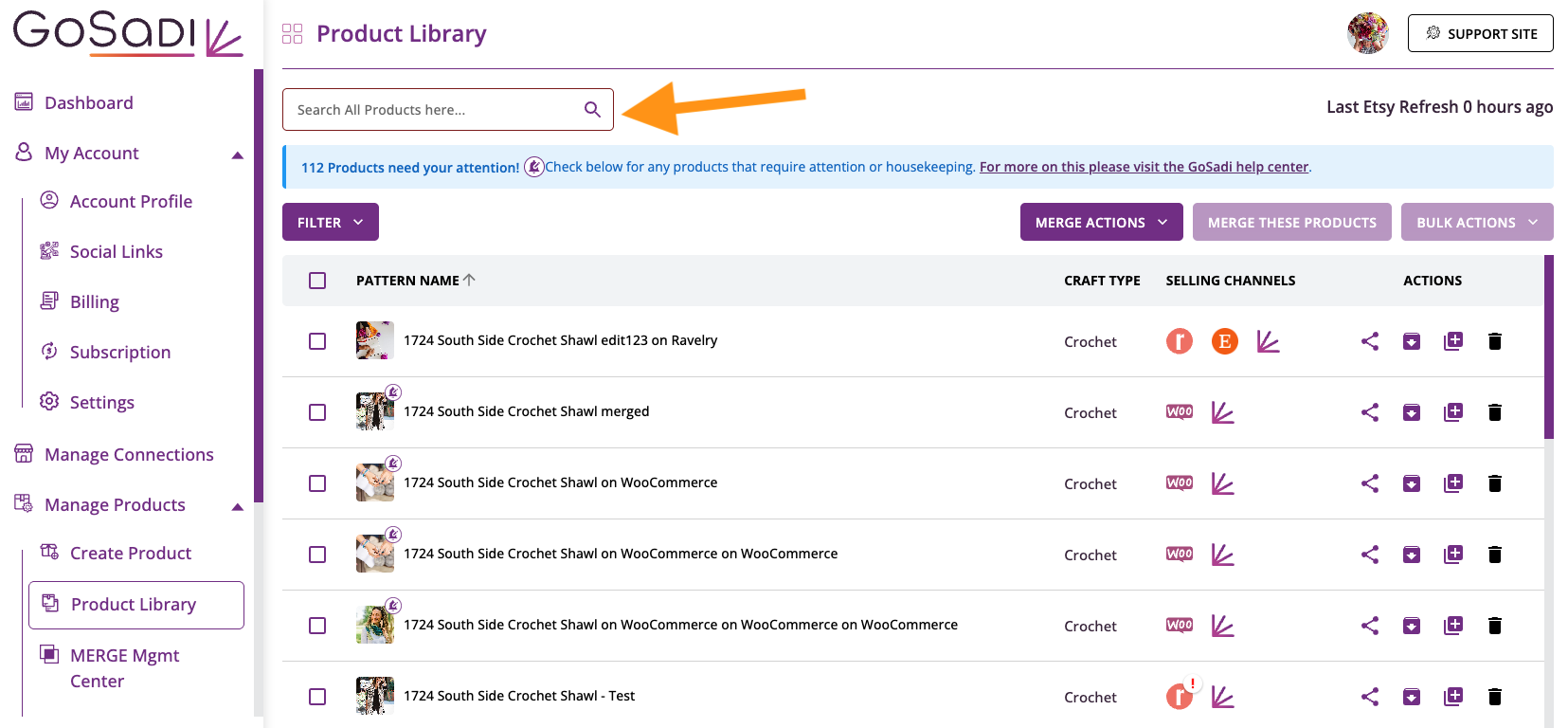
Enter keywords that match the pattern name in the search bar to find a specific product quickly.
Sort Your Patterns
Click the arrows next to Pattern Name to sort your products alphabetically.
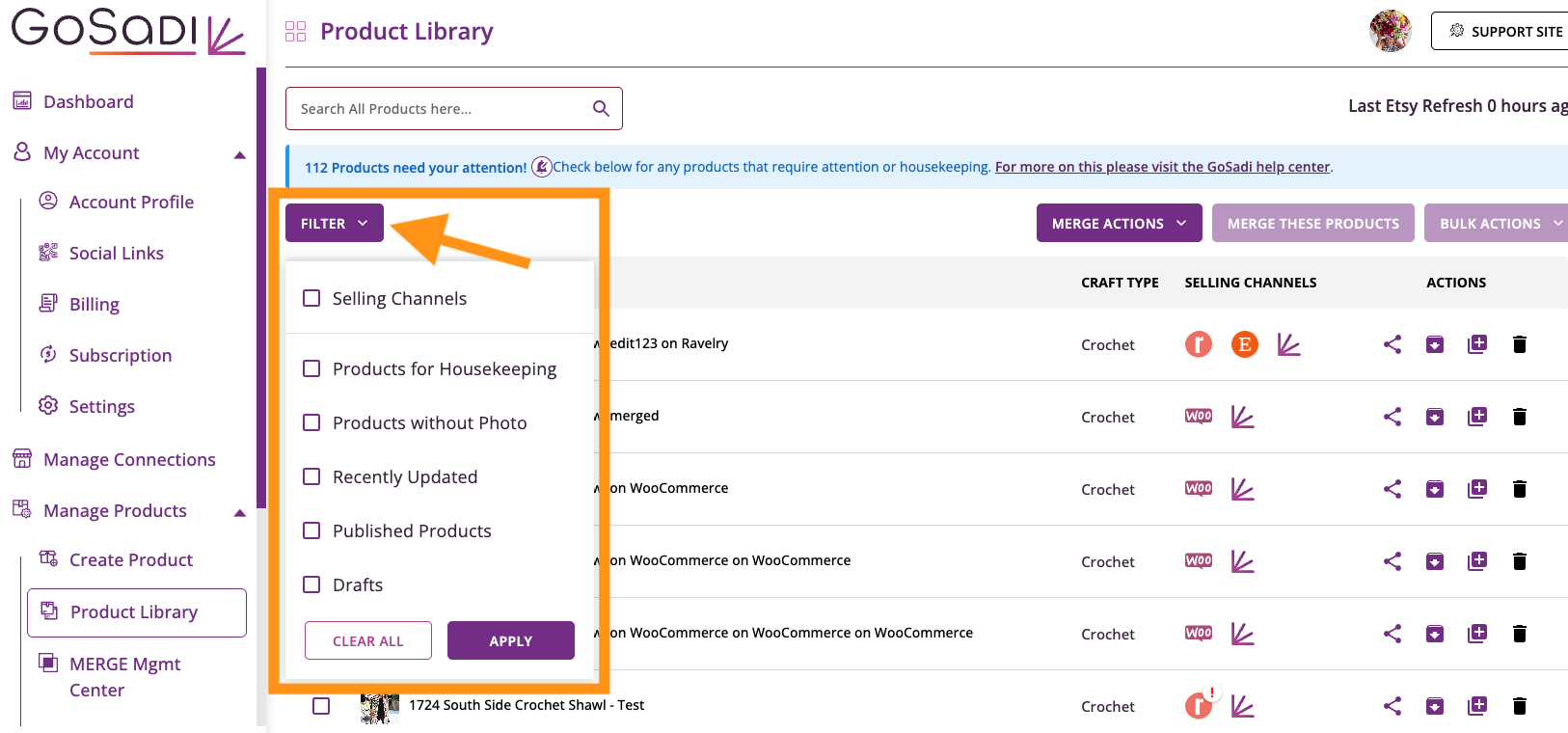
Filter Your Patterns
1. Click the Filter button in the top left corner of your Pattern Library page
2. Choose one or more Selling Channels to filter by
3. Choose Housekeeping to show only products that need attention
4. Choose Products without Photo to quickly see which products need a photo
5. Choose Recently Updated to see only the patterns you’ve interacted with recently
6. Choose Published Products to see those patterns that have been published
7. Choose Drafts to see those patterns that have not been published
8. Click Apply to apply filter(s)
9. To reset your list, click Clear All in the filter box or click the X next to each filter to the right of the Filter button
NOTE: You can apply multiple filters at the same time.
Edit Your Patterns
Use these editing options to keep your patterns accurate and optimized.
Attention alert: Products that need attention show a bell icon on their picture
Individual editing: Click a product to open its information and update pattern details
Bulk Actions: Select multiple products to Archive, Hide, Unhide, or Edit all at once
Bulk editing: Select multiple products from the same Selling Channel, then click Edit Multiple Products on a Channel to edit and publish/sync them together
Bulk archive or hide: Archive listings you no longer want available to customers
NOTE: To learn more about Bulk Archive and Delete, visit our best practices page.
Use Product Library Actions
The ACTIONS column gives you quick shortcuts for common tasks.
Share: Let’s you share a link to that pattern
Archive: Moves a product to your Archive Library, which you can access through the left-hand side panel once you’ve archived one or more patterns
Copy: Creates a copy of the pattern
Delete: Removes a product from your GoSadi Product Library. The original Selling Channel is not affected.
IMPORTANT: Deleting removes the product from your GoSadi Product Library only. Check your Selling Channels before you assume a listing has been removed there. For more information on Deleting Patterns, please see Deleting Patterns From Your Product Library document.
Merge Actions & Merge These Products
GoSadi treats patterns from multiple Selling Channels as independent of each other when you import them. Therefore, patterns in your Pattern Library are duplicated, one per Selling Channel. To merge those patterns, so they appear as one line (with all Selling Channels in the Selling Channels column), and to learn more about Merging Patterns in general, visit our Merge Your Patterns Across Selling Channels document.
Other Helpful Tips
To explore all the features and benefits that GoSadi has to offer, visit our website today!