
Manage Your First Link and Selling Channel Order
Control how your selling channels appear to customers by choosing the order of your channels on your Designer Landing Page and setting a “First Link" if you want to highlight a specific option.
What is First Link?
First Link is the first available link that appears when someone wants to buy your pattern. You control what that link is.
First Link options:
A selling channel you're connected to (Ravelry, Etsy, WooCommerce, Shopify, etc.)
A link to a website, blog, or collaboration
Affiliate links (e.g., a link to get the yarn through your affiliate partnership)
Any link you want to prioritize
EXAMPLE: Natalie of Detroit Knots uses her First Link to direct customers to her collaboration with Lion Brand Yarn, so they can get the kit and use her affiliate link.
Manage Selling Channel Order
Control the order your selling channels appear to customers on your Designer Landing Page.
1. Go to your Designer Landing Page (DLP) Profile
2. Scroll down to Select the order of Selling Channels to appear on your DLP
3. Look at your Selling Channels list
4. Drag each channel to reorder them
a. Move your most important channel to the front
b. Arrange others in your preferred order
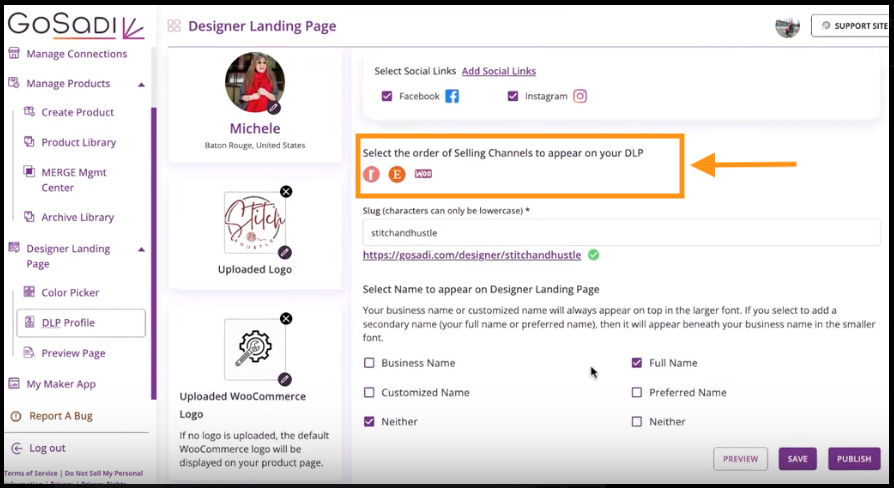
5. Click Publish
When customers visit your DLP, they see your selling channels in the order you chose.
EXAMPLE: If you use Ravelry, Etsy, and WooCommerce, you could put Ravelry first, then Etsy, then WooCommerce. When customers see your pattern, they see the channels in that order.
Set Your First Link
First Link is managed in your individual Product Settings, not your DLP profile.
1. Go to your Product Library
2. Select a pattern
3. Go to Selling Channels → DLP Tab
4. Enter the link you want to appear as your First Link in the box provided at the top. The link could be:
A selling channel URL
Your website or blog
An affiliate link
Any URL you want to prioritize
5. Click Sync or Save
This link now appears as the first available option when customers view your pattern.
NOTE: If you don't add a First Link, your selling channels appear in the order you set on your DLP profile, with no additional link.
What Customers See
If you have a First Link set:
First Link appears first (your custom link)
Followed by your selling channels in the order you set
If you do not have a First Link set:
Your selling channels appear in the order you set on your DLP
No additional link appears
EXAMPLE: A customer views your Southside Shawl pattern. They see: Your First Link (affiliate link), My Site, Ravelry, Etsy, WooCommerce — in that order, based on how you set it up.
When to Use First Link
Use First Link when you want to:
Direct customers to an affiliate partnership
Promote a collaboration
Link to a free blog post or tutorial
Use a selling channel not yet connected to GoSadi
Prioritize one option over others
Other Helpful Tips
To explore all the features and benefits that GoSadi has to offer, visit our website today!