
How to Publish Patterns to Squarespace
You can publish your patterns to Squarespace from GoSadi after you connect your Squarespace store. Squarespace shows your patterns as a service, not a digital download, but customers still receive the pattern by email from GoSadi.
Understand How Squarespace Delivers Patterns
Squarespace's API doesn't support digital downloads, so your patterns appear as a service in your Squarespace store.
Customers receive the digital download by email from GoSadi after they purchase
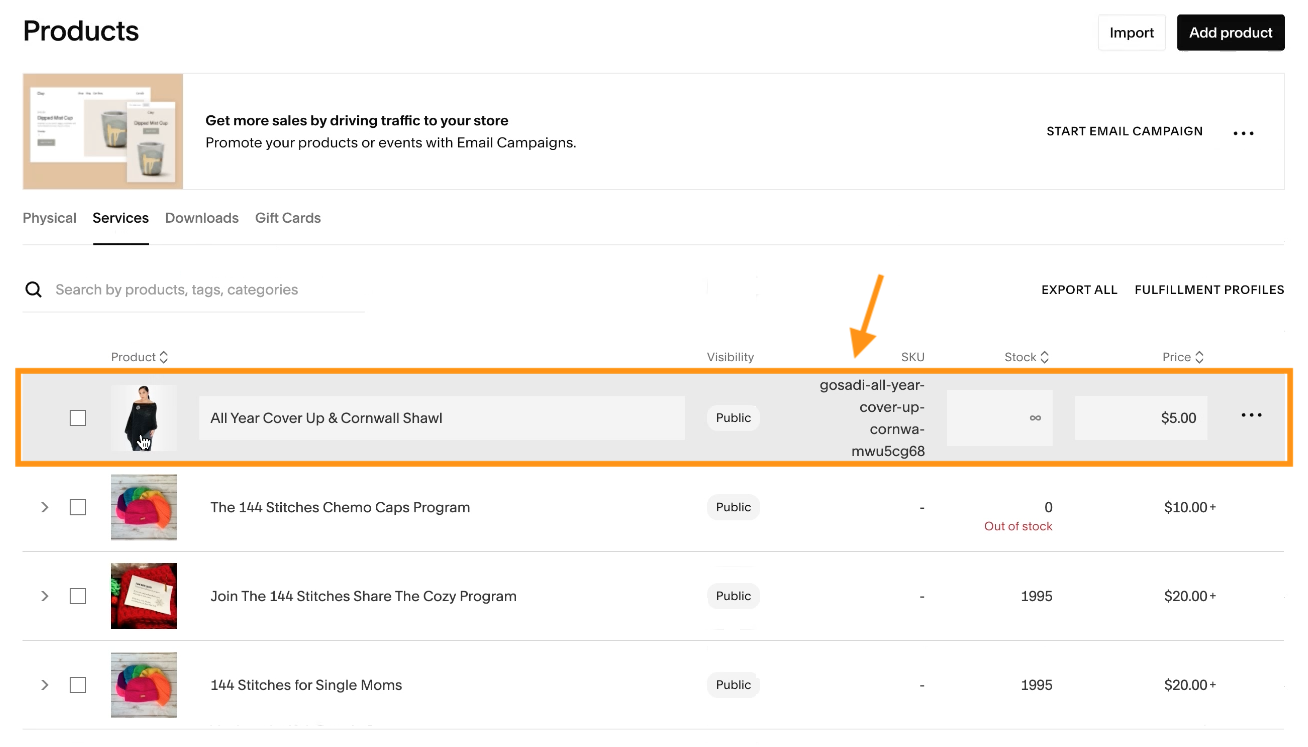
On your Squarespace backend, you’ll see the pattern as a Service with the label GoSadi to let you know that the pattern is managed from GoSadi
Patterns show infinite stock in Squarespace
If Squarespace updates its API to support digital products, GoSadi will update your listings automatically
Set Up Your Squarespace Listing
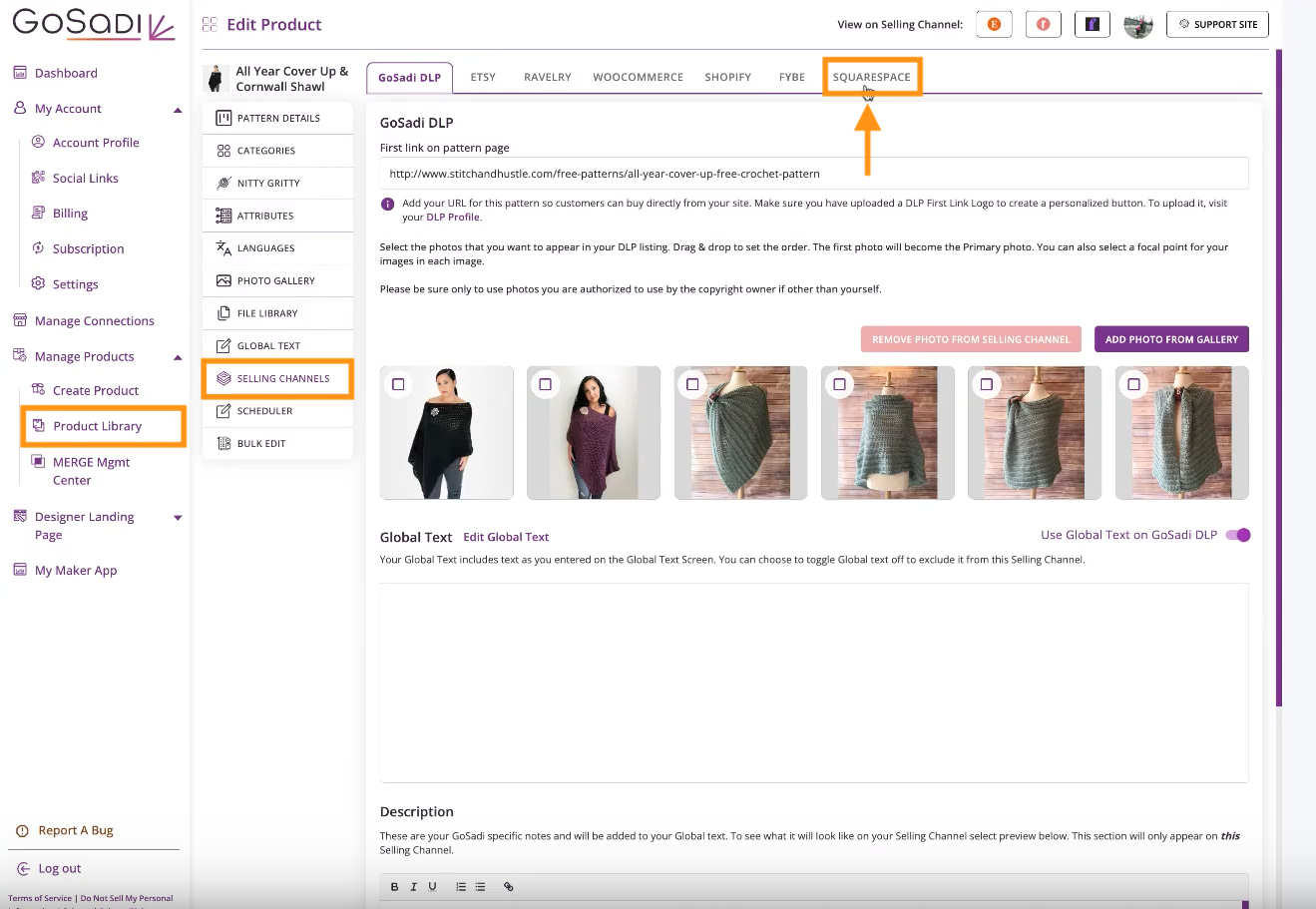
1. Go to your pattern in Product Library
2. Click the Selling Channels tab
3. Click Squarespace
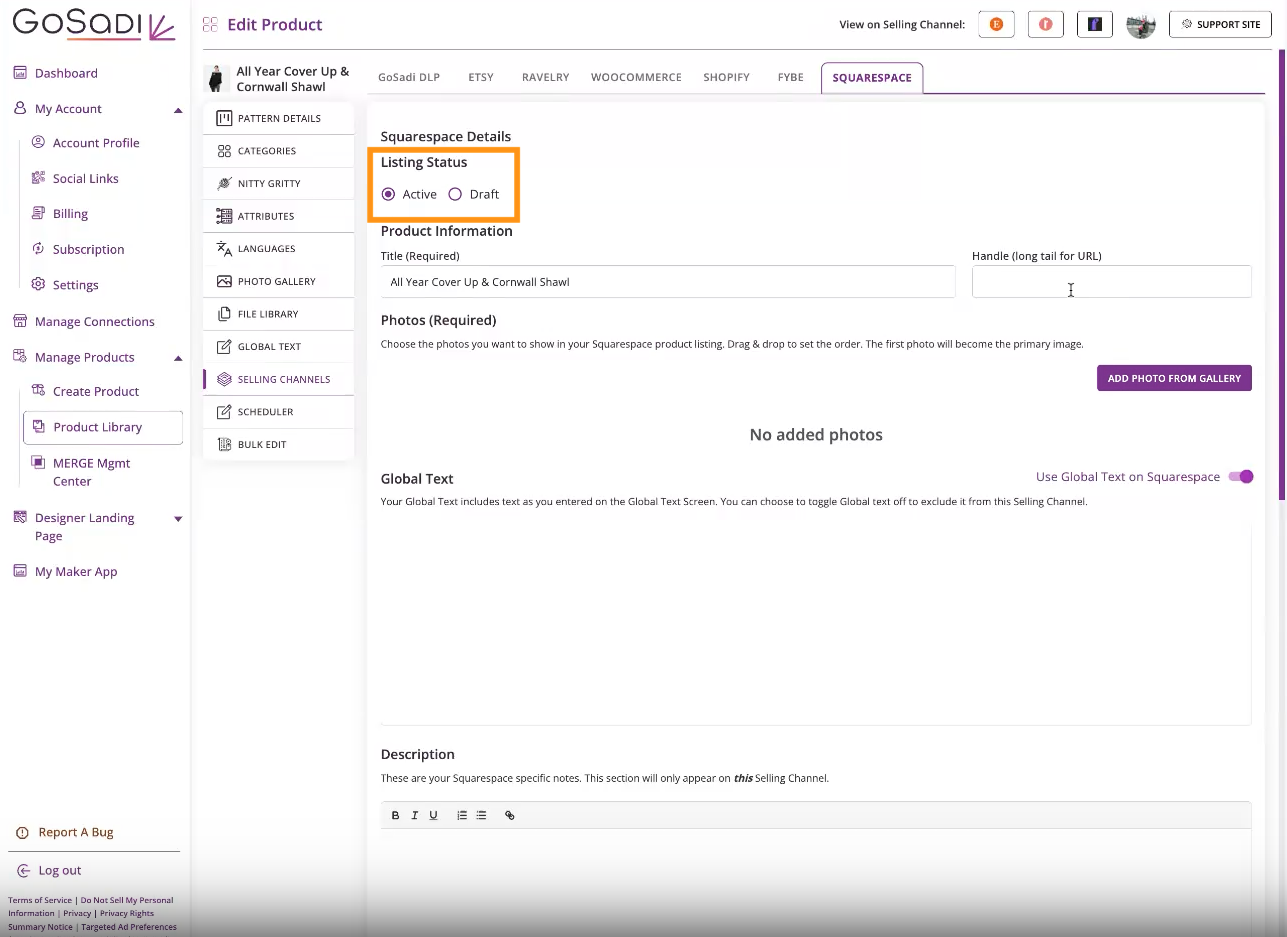
4. Change the listing from Draft to Active
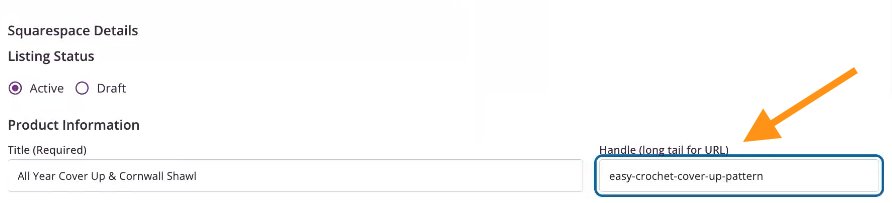
5. Enter a URL for the listing in the long-tail box. Use keywords that describe the pattern for SEO, such as "easy-crochet-cover-up-pattern."
6. Add photos from your Photo Gallery

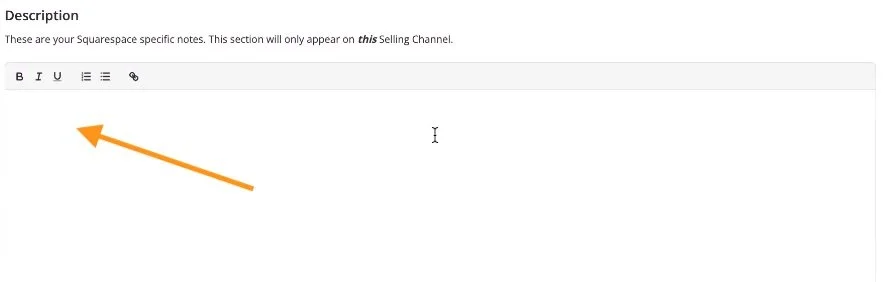
7. Enter your listing text in the Description box or click GoSadi SMARTS!™ to generate it
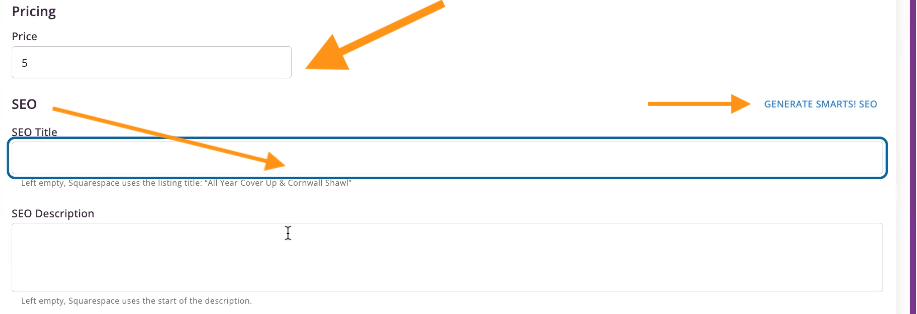
8. Enter the Price
9. Enter any SEO information you want to include, or click GoSadi SMARTS!™ to generate it
10. Add any Tags you want
11. Confirm your pattern file is attached
IMPORTANT: The attached pattern file is what allows GoSadi to deliver the pattern to your customers. Don't publish without it.
12. Select the area of your Squarespace site where the pattern should appear, such as All Patterns
13. Click Publish to Squarespace

After you publish, a link to your Squarespace listing appears at the top of the page. Use it to check how the listing looks to customers.
Edit and Sync
After you publish a pattern to Squarespace, you can edit it straight from GoSadi.
1. Go to the pattern in Product Library
2. Click the Selling Channels tab
3. Click the Squarespace tab at the top
4. Make your edits
5. Click Sync to Squarespace

6. Refresh your Squarespace listing to confirm your edits synced
What Customers See
When a customer adds your pattern to their cart, they see the pattern as an item for purchase. After checkout, they receive the pattern by email from GoSadi.
DLP Profile Logos
You can add your Squarespace shop’s logo to your DLP profile replacing the default Squarespace logo. Learn how to change the logo, Selling Channel order, and more by following these instructions.
To explore all the features and benefits that GoSadi has to offer, visit our website today!