
How to Connect Your Squarespace Store to GoSadi
Connecting your Squarespace store to GoSadi imports your products from your Squarespace store into your GoSadi Product Library, so you can manage your patterns in one place. The connection takes a few minutes, and the import runs in the background.
Connect Your Squarespace Store
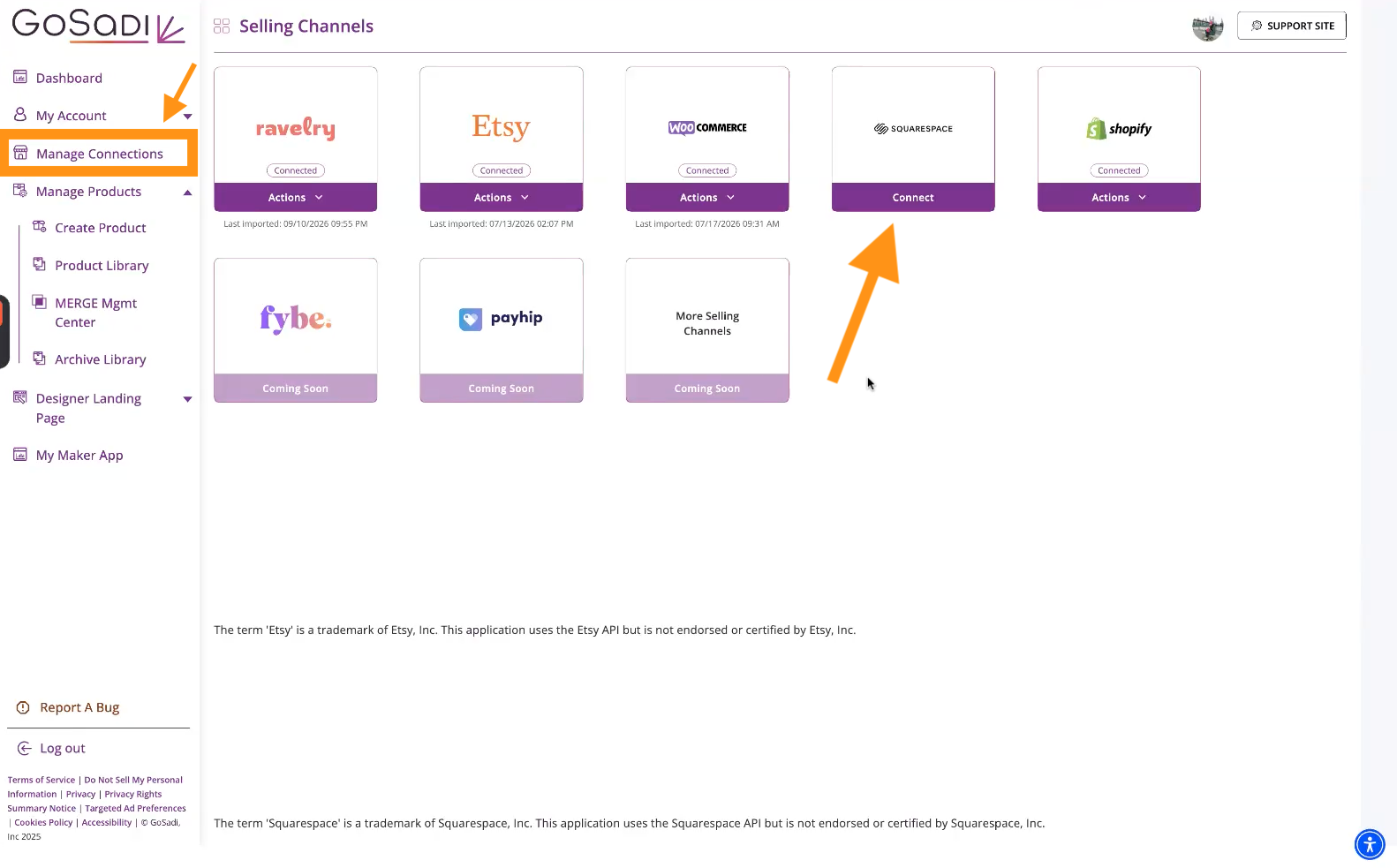
1. Go to Manage Connections
2. Find the Squarespace box
3. Click Connect at the bottom of the box
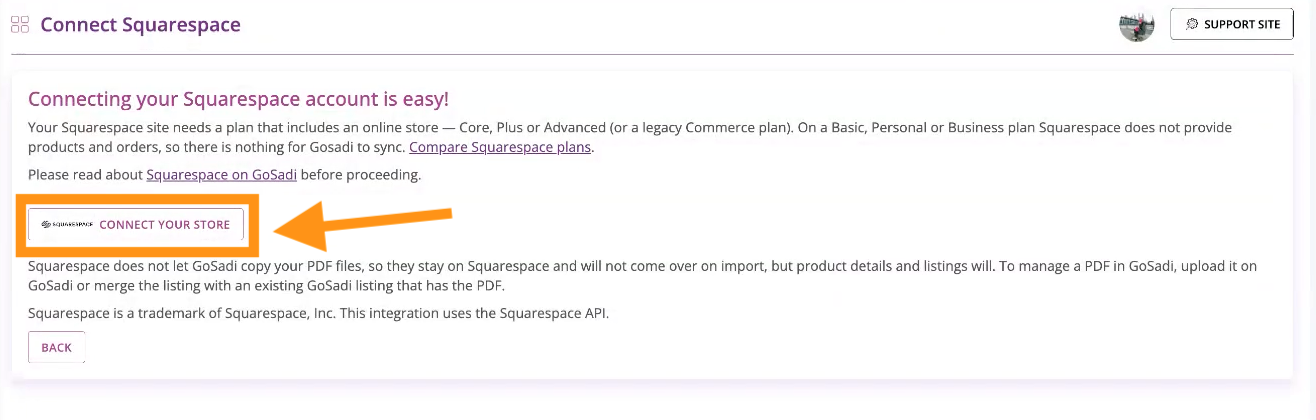
4. From the Squarespace connection page, click the Connect Your Store button
5. If you have more than one Squarespace site, select the site you want to connect

6. Click the Allow button
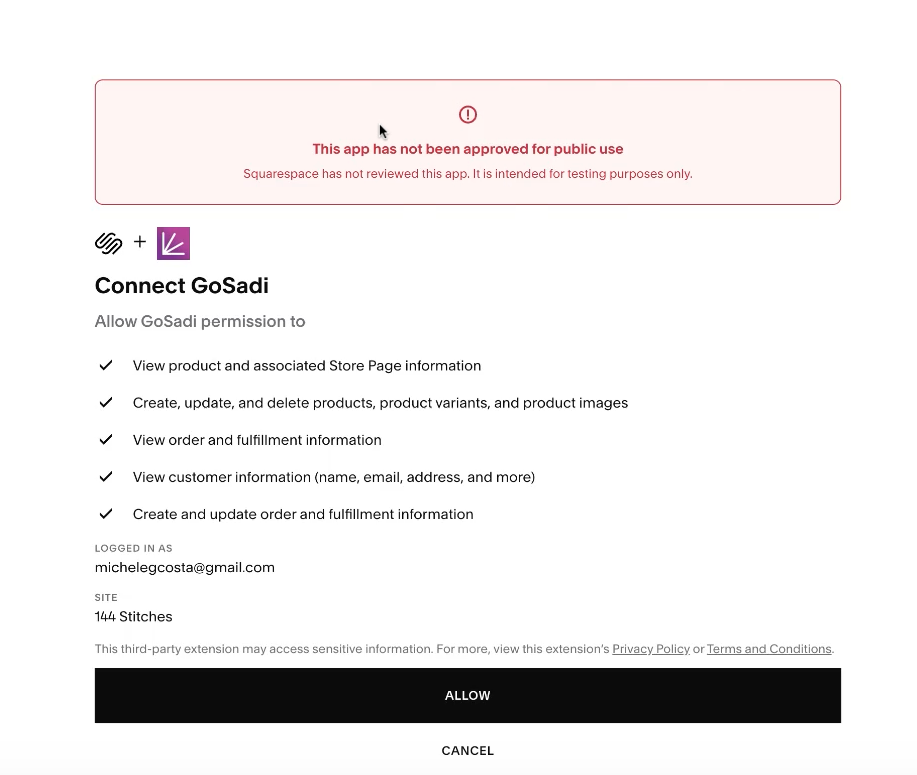
NOTE: GoSadi is approved to connect to Squarespace. If you see a red box at the top of the Allow page, ignore it and click the Allow button.
Wait for Your Products to Import
After you connect, the import begins automatically. A progress indicator shows how long the import will take.
Check the progress indicator to see the status of your import
You can close the import box while the import runs
Wait for the import to finish
Find Your Products
Once the import is complete, your Squarespace products appear in your Product Library.
Go to Product Library
Confirm your products appear
Continue with the next steps to manage your patterns
Other Helpful Tips
Manage Digital Patterns Across Squarespace
To explore all the features and benefits that GoSadi has to offer, visit our website today!