
Bulk Edit Multiple Listings on a Selling Channel
Bulk editing lets you update multiple patterns on a selling channel all at once. That means, that you can update a yarn, some language, list a special promotion, etc. on several listings for a selling channel without making the changes one listing at a time. Use it when a yarn is discontinued, your brand name changes, or you want to run a price change or promotion. You make the change once in GoSadi instead of editing each channel separately.
Open Bulk Edit for a Listing
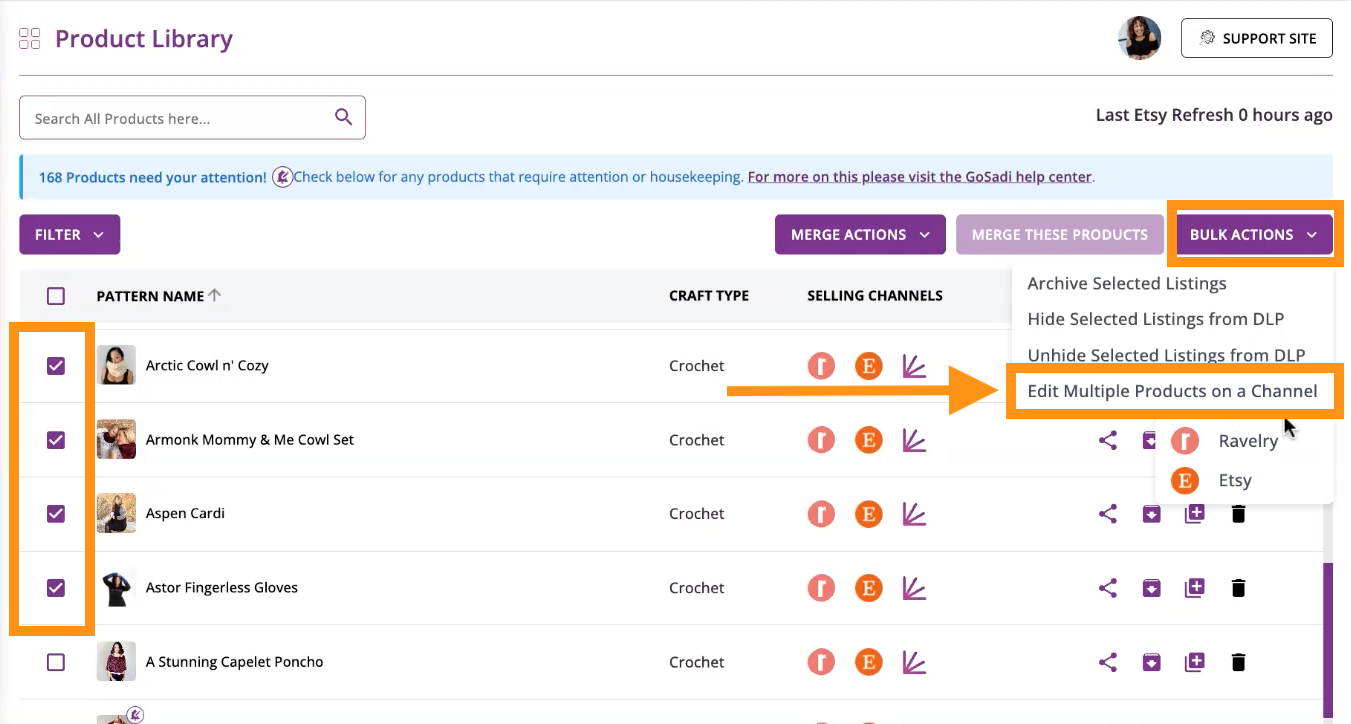
1. Go to Product Library
2. Click the patterns you want to edit
a. You can click as many as you like
3. Click the Bulk Actions button in the upper-right corner
4. Choose the Selling Channel you want these edits to go to from the Dropdown Menu
Make Your Changes
You can change text or price on your listings by choosing the Text or Edit Price tab at the top.
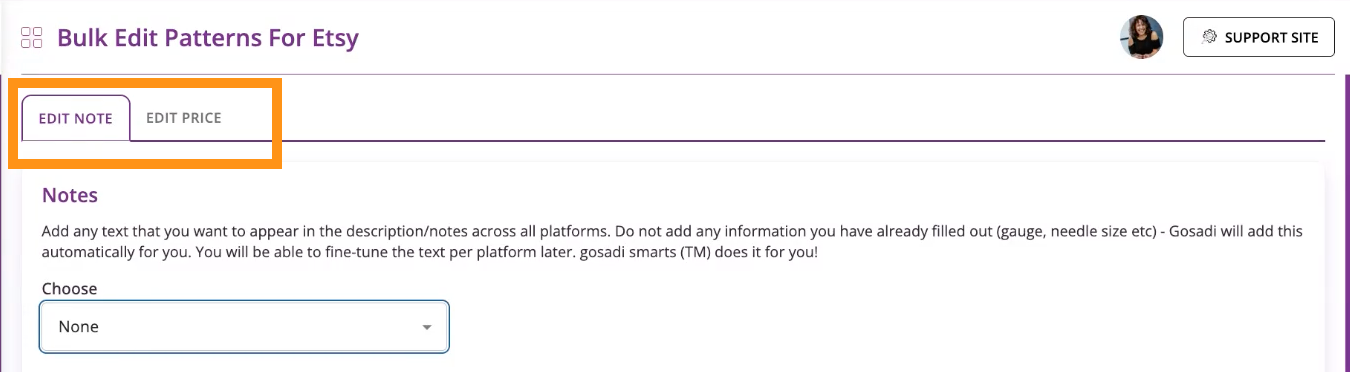
To change Text across several listings
1. Click on the Text tab at the top of the page
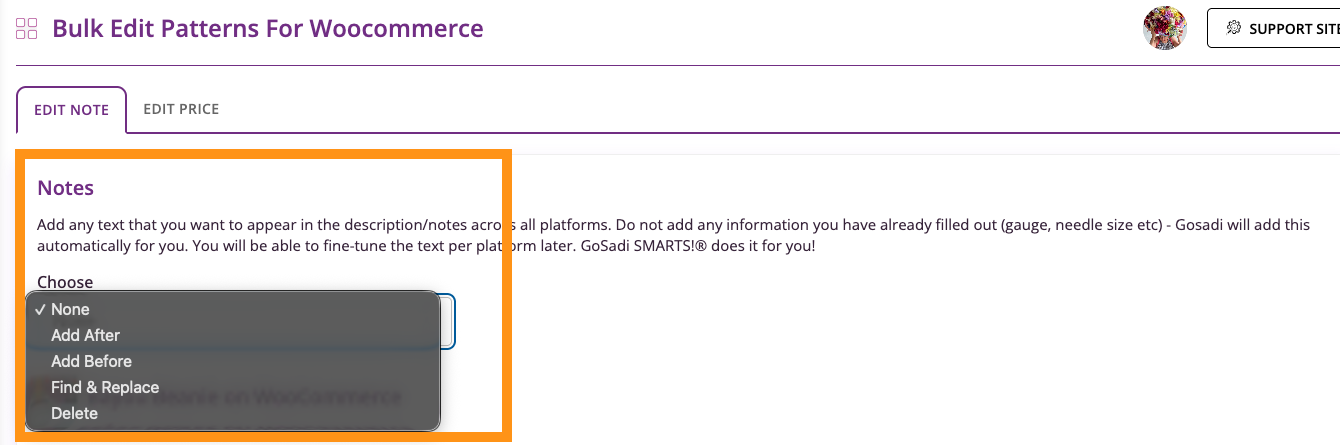
2. From the drop-down options, choose whether you want to
a. Add text after the existing description
b. Add text before the existing description
c. Find and replace text, or
d. Delete text
IMPORTANT: To delete text with bulk edit, you must type the text exactly as it appears in the listing, including spelling and capitalization. If the text doesn’t match exactly, it won’t be removed.
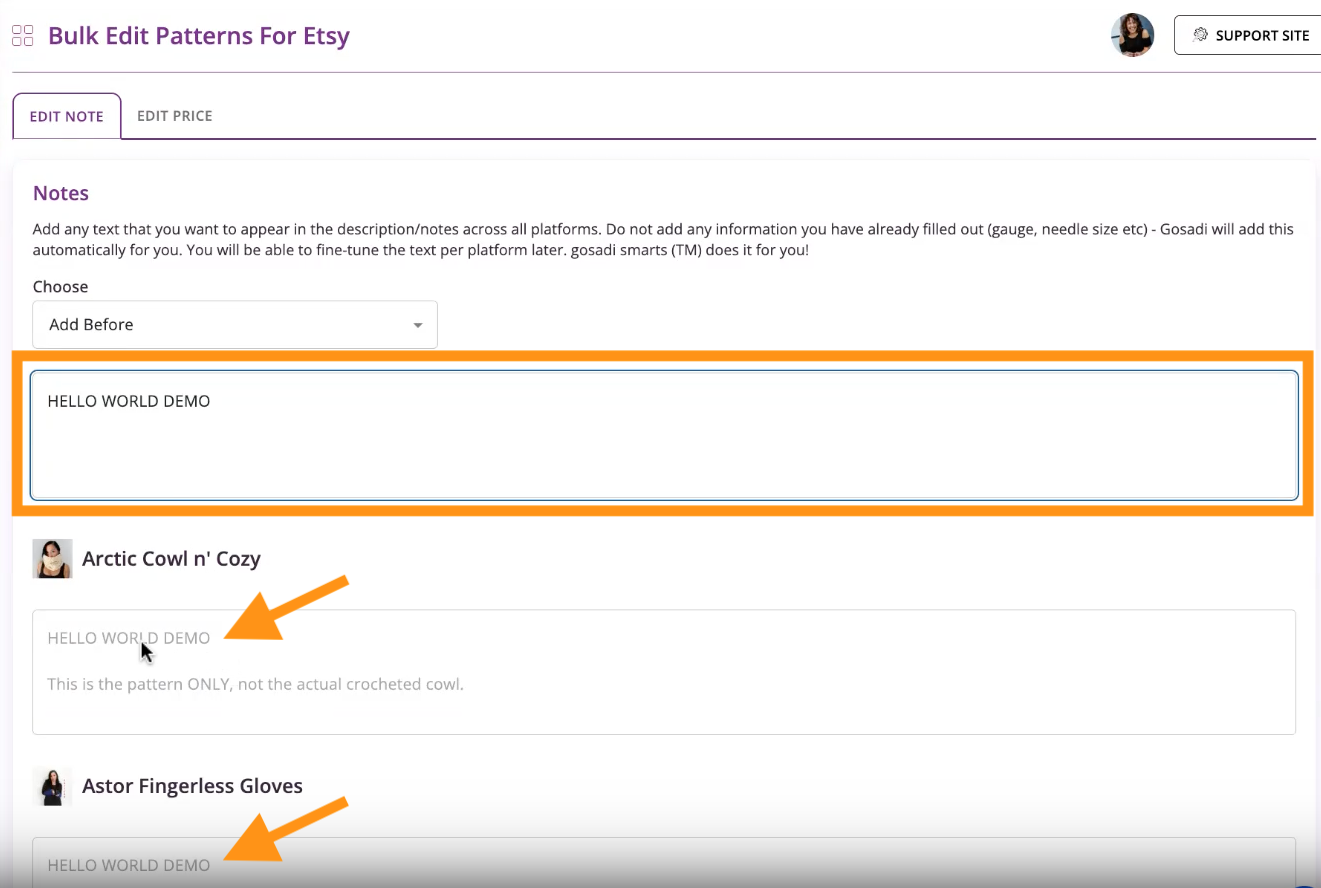
3. Make your edits by typing the information into the text box provided
4. See your edits appear for each listing below it
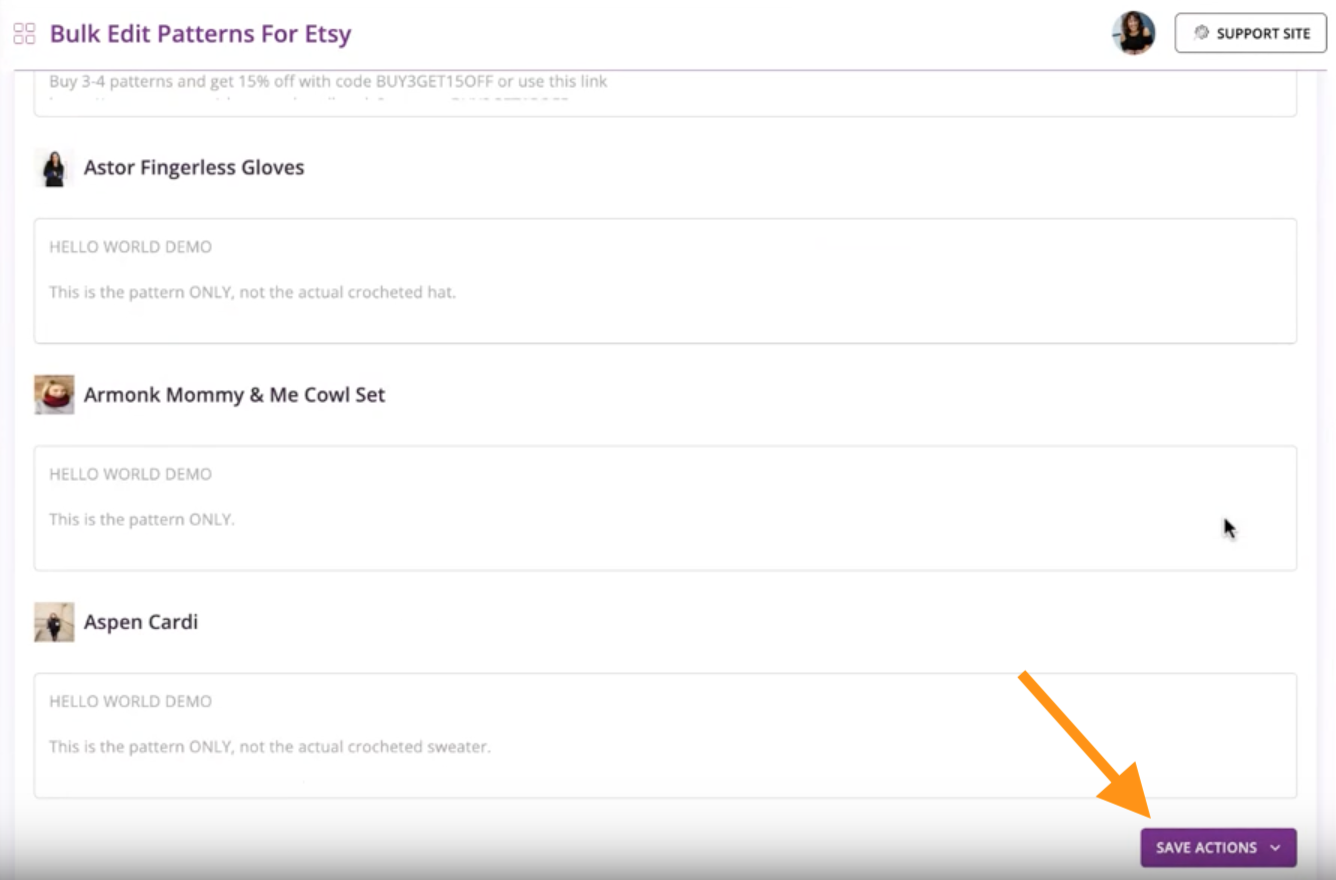
5. When finished, scroll to the bottom of the page and click the Save Actions button
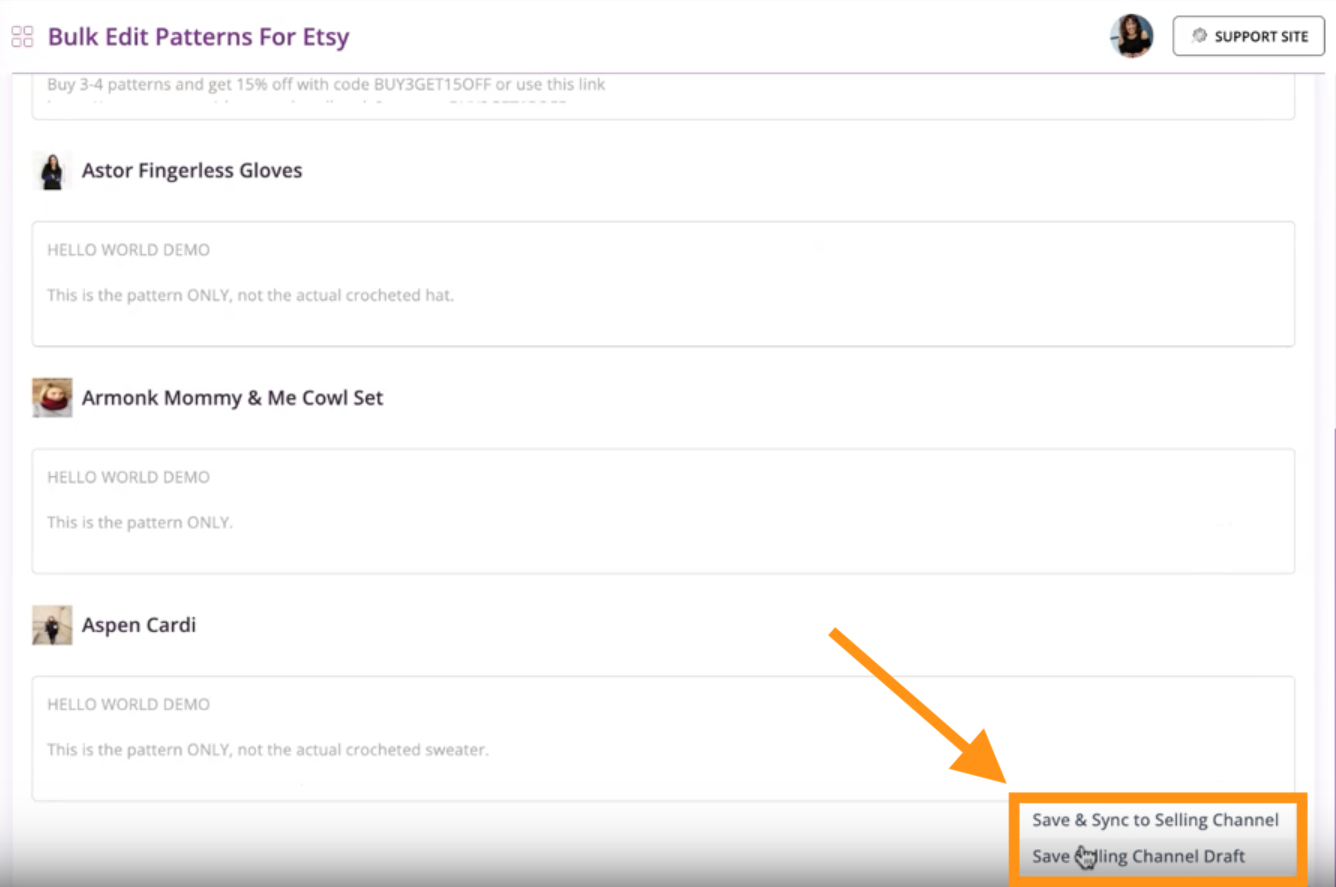
6. Choose whether to
a. Save and Sync to Selling Channel, or
b. Save a Draft
7. Wait for the confirmation that the bulk edit was successful
To change the Pricing across several listings
1. Click on the Edit Price tab at the top of the page
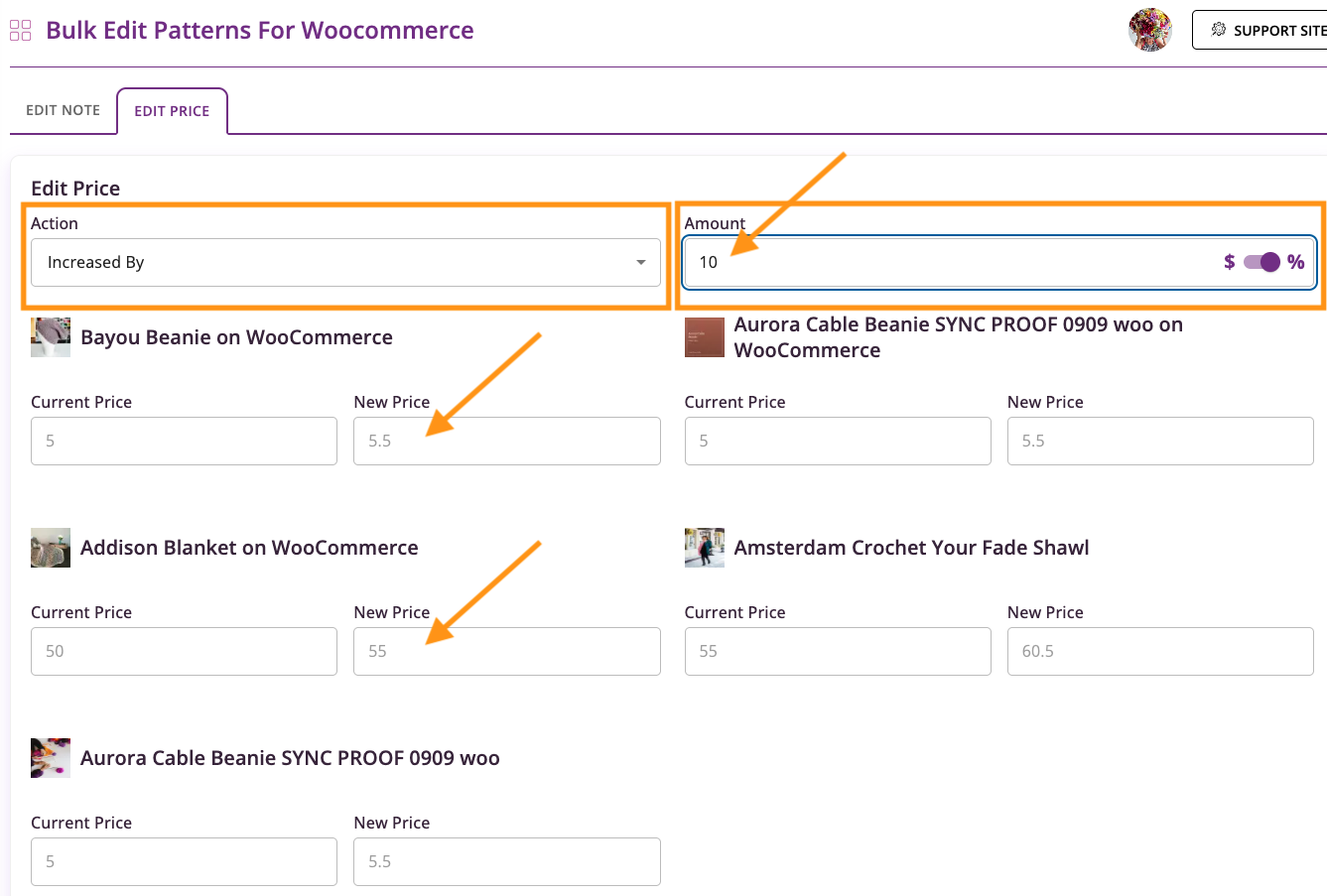
2. From the drop-down options on the left under Action, choose whether you want to
a. Increase by, or
b. Decrease by
3. On the right under Amount, toggle whether the increase or decrease is by a dollar amount or by a percentage
4. Then type the dollar or percentage amount you want to increase or decrease the price by in the text box under Amount
5. Notice the old and new prices appear automatically for each listing below
6. Scroll to the bottom of the page and click Save Actions
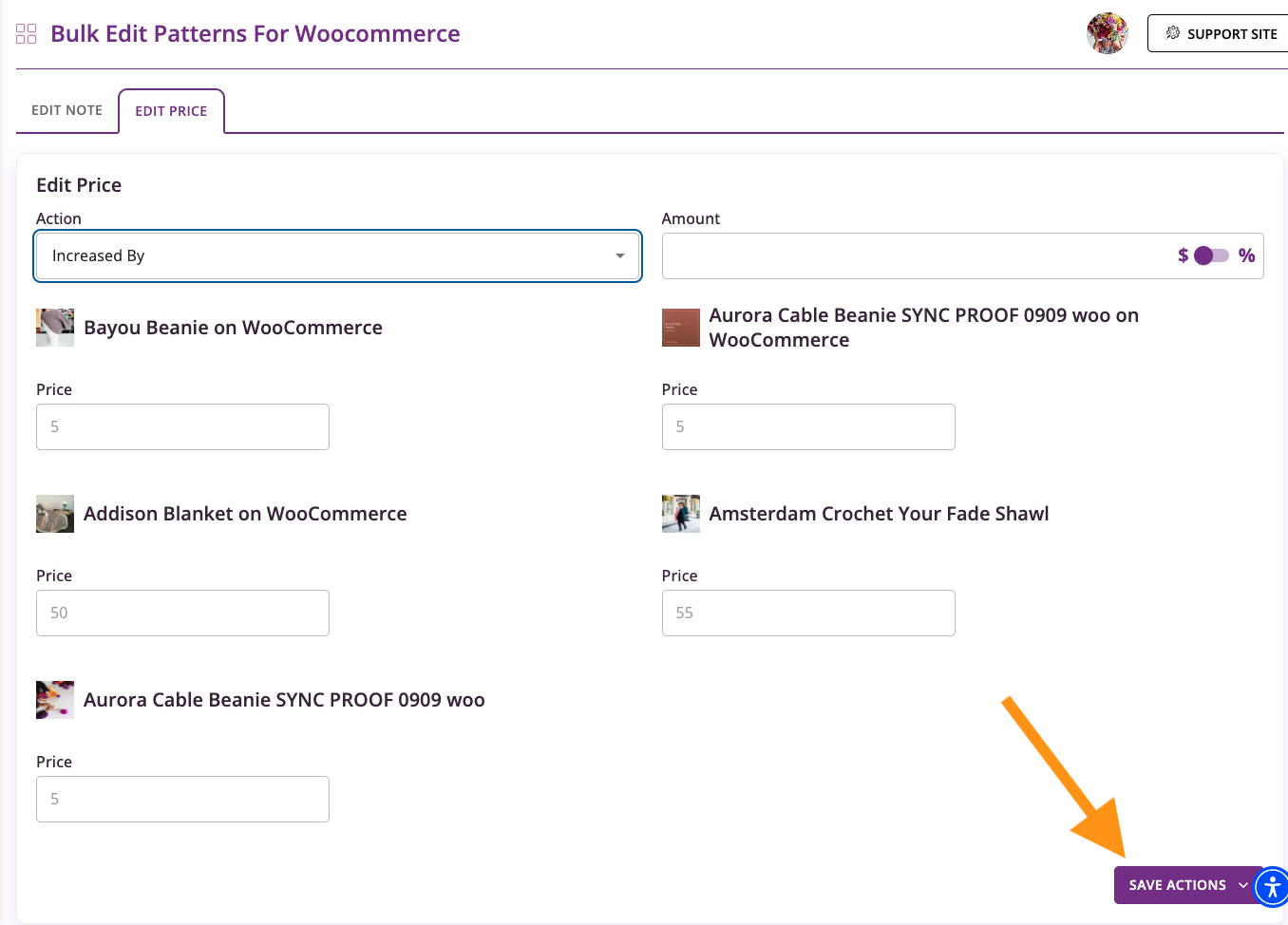
7. Choose whether to
a. Save and Sync to Selling Channel, or
b. Save a Draft
8. Wait for the confirmation that the bulk edit was successful
Check Your Changes
1. Open the pattern on one of your selling channels
2. Confirm that the new text or price appears
Other Helpful Tips
Bulk Edit Prices Across Selling Channels
Mastering Bulk Edits for Your Products Across Multiple Selling Channels
To explore all the features and benefits that GoSadi has to offer, visit our website today!