
Set Up WooCommerce Designer Landing Page Logos
After connecting WooCommerce to GoSadi, your patterns published to your store will appear on your Designer Landing Page (DLP). Add a custom logo or art for your WooCommerce store so customers know where to buy and your brand is clearly represented.
Add Your WooCommerce Logo to Your DLP
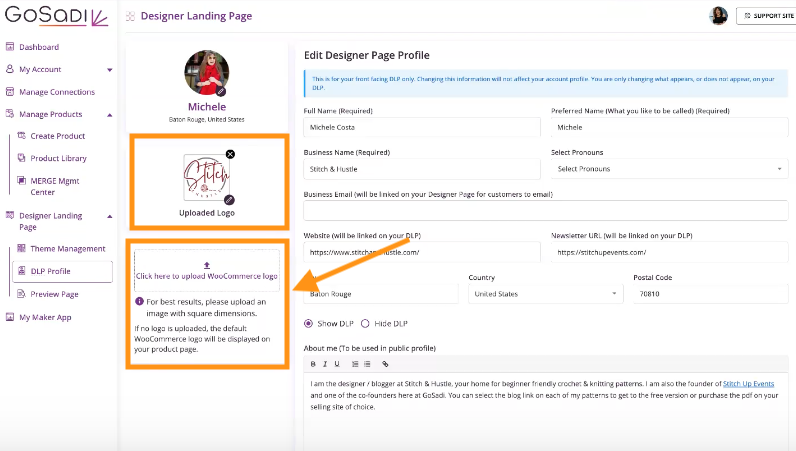
Navigate to Your DLP Profile
1. Go to your DLP Profile in GoSadi
2. Scroll to the section for uploading logos or store images
You'll see:
Your main logo (already uploaded)
A space for your WooCommerce store logo
Upload Your WooCommerce Logo
1. Click on the WooCommerce logo upload area
2. Select an image from your desktop
a. This can be the same as your main logo or a different design
b. GoSadi recommends using a distinct logo or piece of art to differentiate your WooCommerce store from a link to your blog or another link on your website (the first logo)
3. Click Save and Publish
What Happens Without a Logo
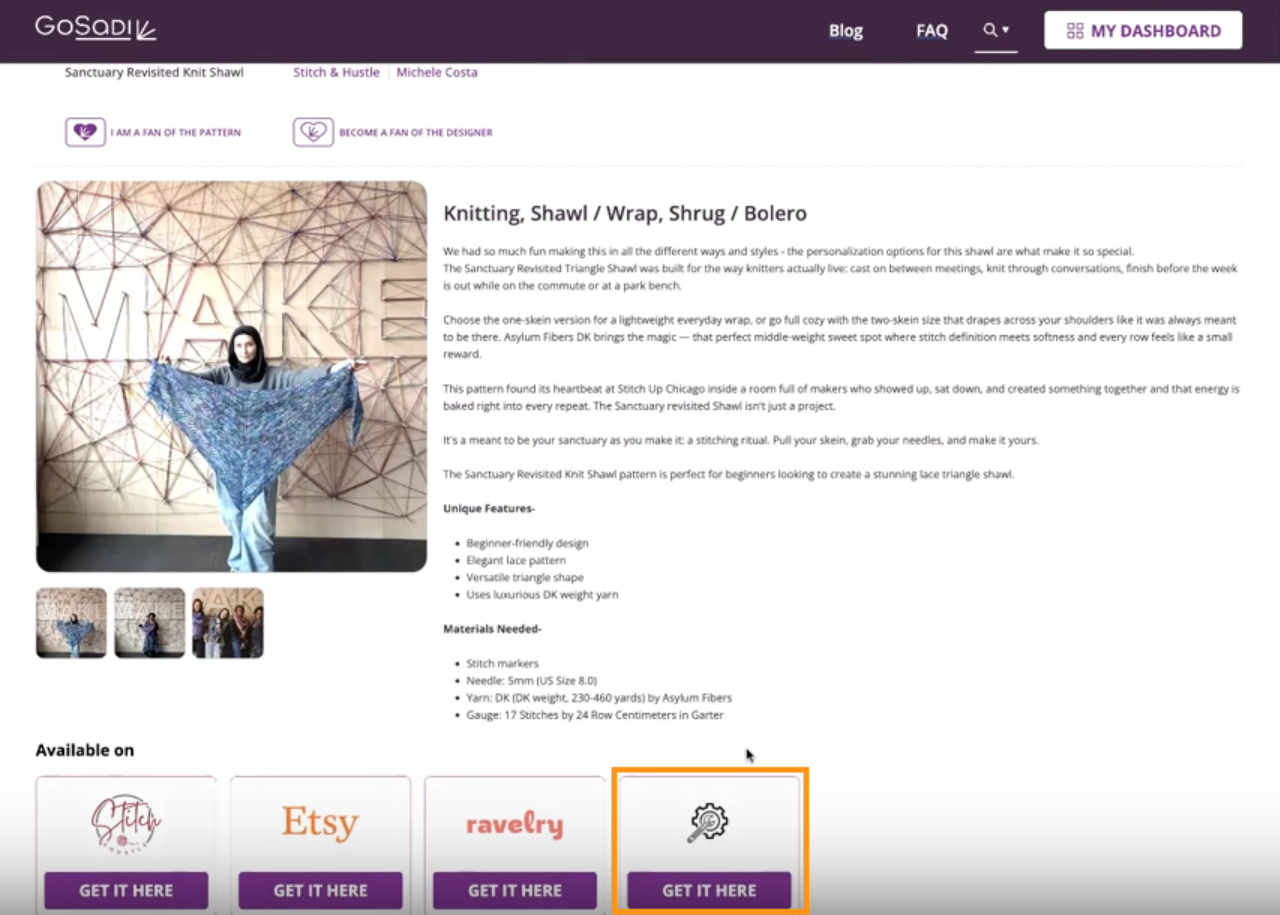
If you don't upload a WooCommerce logo:
The default Woo logo appears on your DLP
This doesn't represent your brand
Customers may not immediately recognize it as your store
What Happens With Your Logo
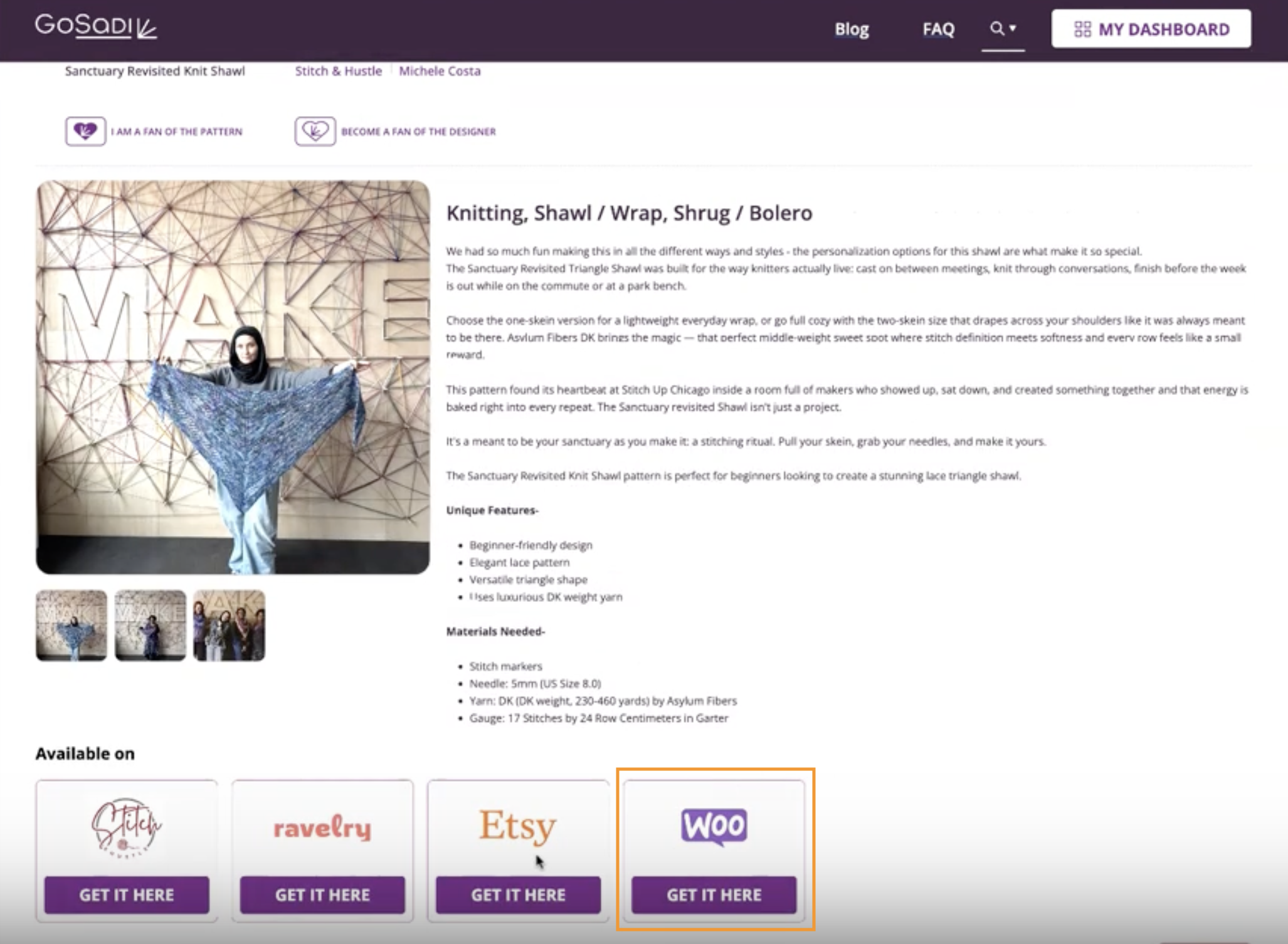
After uploading your logo:
Your custom logo appears on your DLP
It's positioned next to your WooCommerce store link
Customers see your branding when they want to buy
When someone visits your pattern page and clicks Get it here, they can choose from multiple sources:
Your WooCommerce store (with your logo)
Ravelry
Etsy
Other selling channels you use
Manage Multiple Store Logos
You can upload different logos for different purposes.
1. Go to your DLP Profile
2. For each link you add (YouTube, blog, WooCommerce, etc.), you can upload a corresponding logo or piece of art
Example: Upload your WooCommerce logo for your store link, a YouTube thumbnail for video links, and a blog image for blog links. This helps customers know which link goes where.
Publish Your Patterns to WooCommerce
Once your logo is set up:
1. Go to your Product Library
2. Select a pattern to publish
3. Fill in the WooCommerce details (description, price, file)
4. Click Publish to WooCommerce
5. The pattern appears in your WooCommerce store
6. On your DLP, the pattern now shows your WooCommerce link with your custom logo
To explore all the features and benefits that GoSadi has to offer, visit our website today!