
How To Put GoSadi on Your Phone’s Homescreen
GoSadi is not an app, but you can save the GoSadi icon to your phone’s homescreen, and access GoSadi just like an app.
Add a GoSadi Icon to Your Homescreen
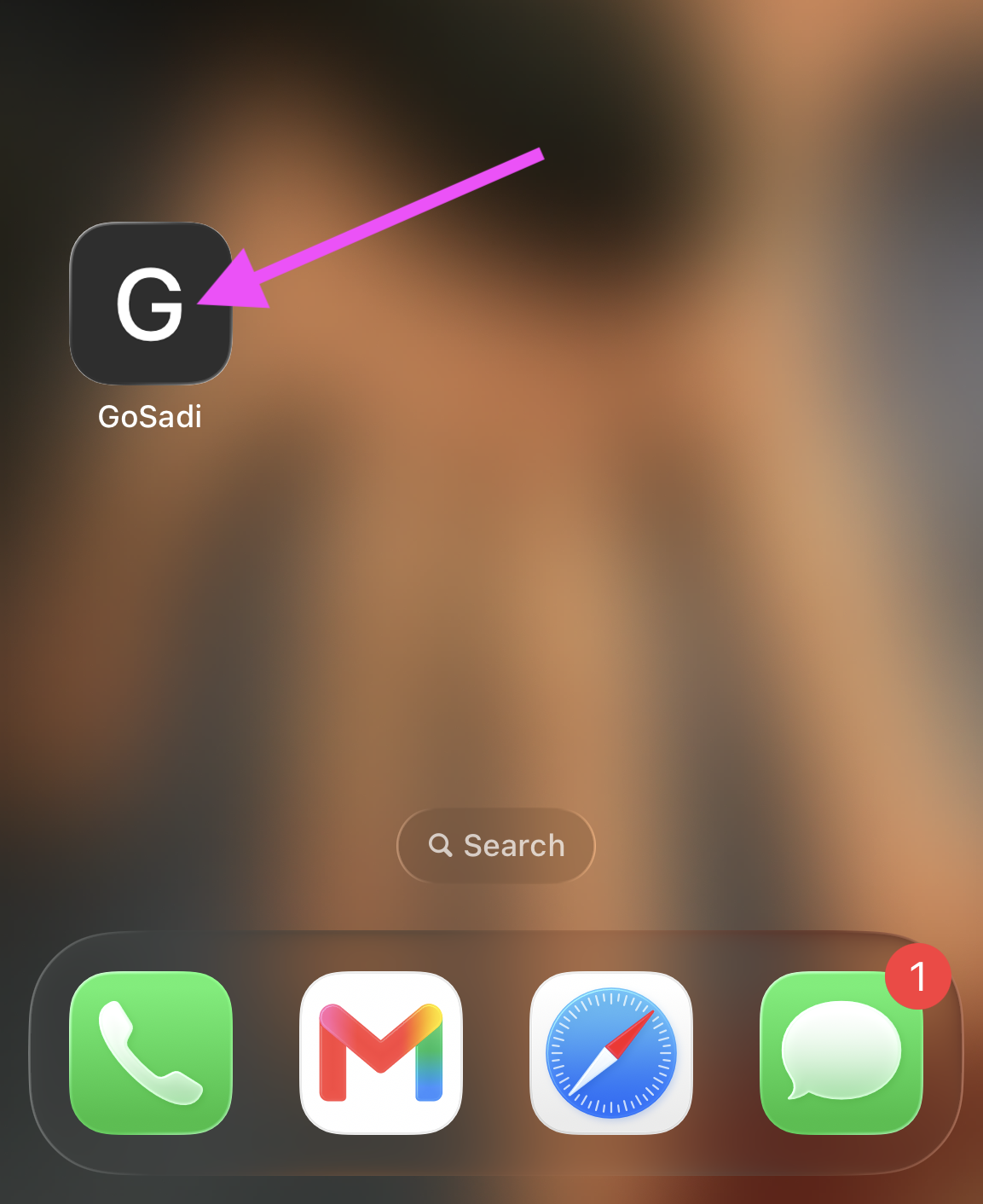
1. Open your favorite browser from your phone
2. Navigate to GoSadi (gosadi.com)
3. Press the Log-in button and log-in to your GoSadi account
4. If you are a Designer, you’ll be prompted to go to your Makers Account
a. Press the blue Go To Makers button

IMPORTANT: The Designer side of GoSadi does not operate on mobile due to storage capacity. Because we wanted Designers to have better selling opportunities, we chose more storage (for photos, files, pattern details, etc.) over mobile access. However, the Maker side of GoSadi works on mobile devices (phones, tablets, etc.), because the storage amounts are smaller.
5. Expand the Left-hand Side Panel
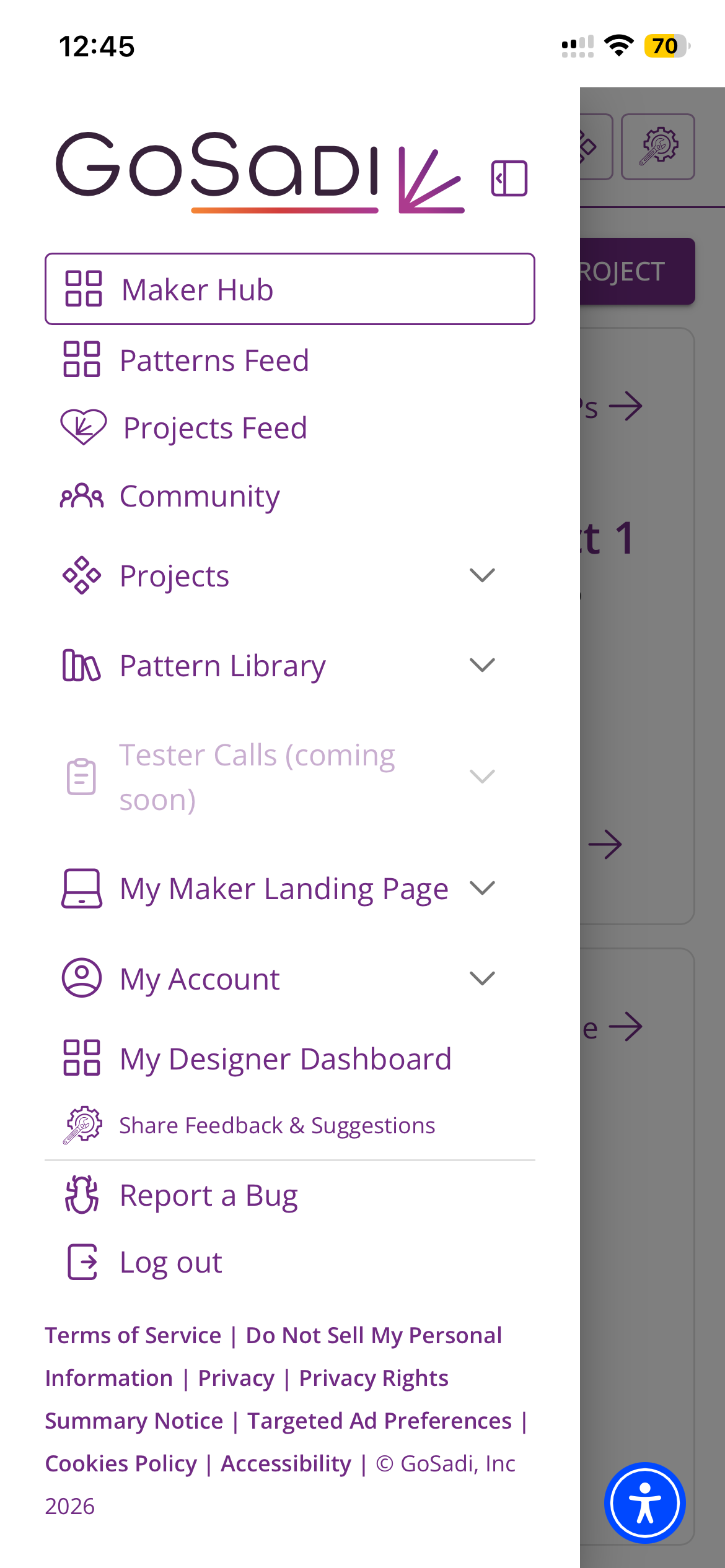
6. Choose Maker Hub (or any other section you want)
NOTE: When you click the GoSadi icon, it will always open to the section you choose.
iPhone
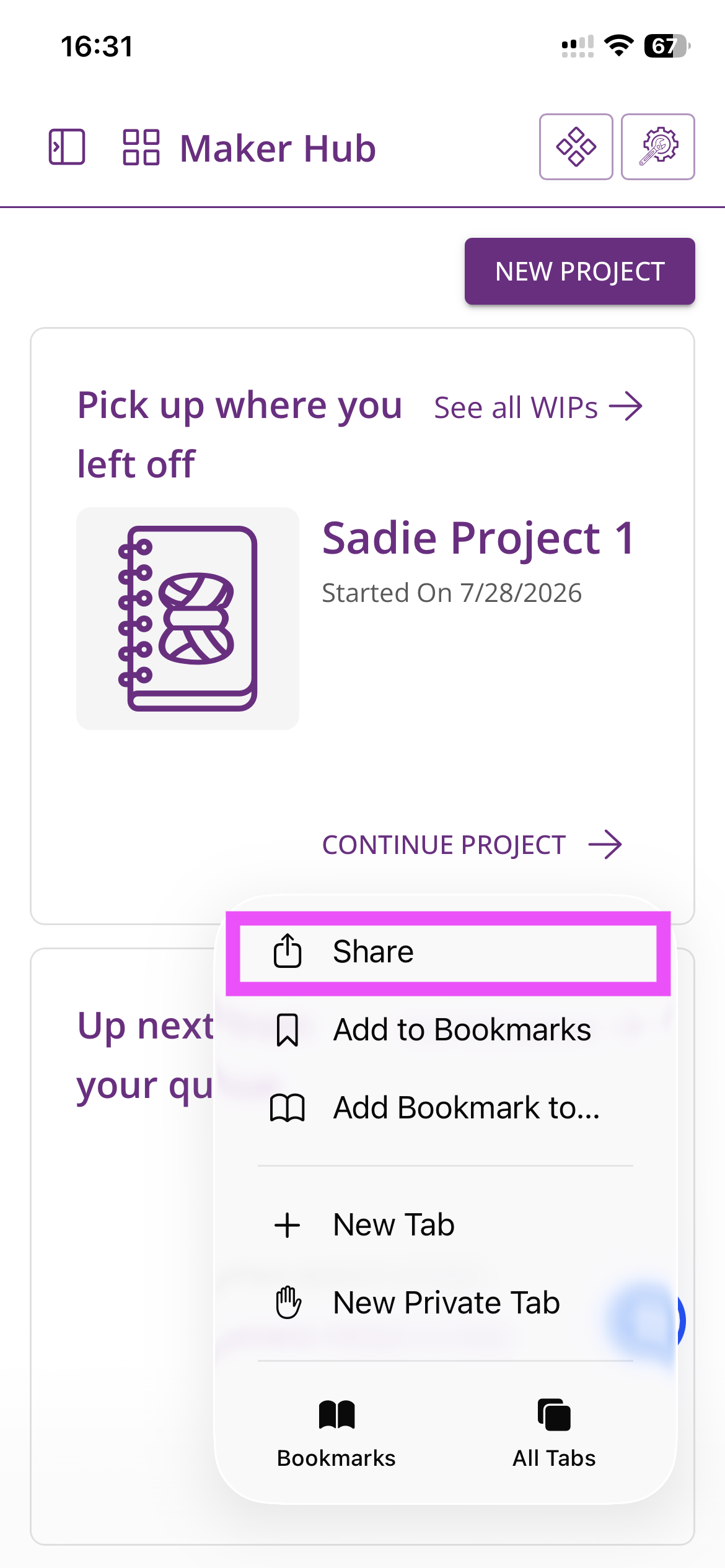
1. Click on the three dots at the bottom of your screen
2. Choose the Share option
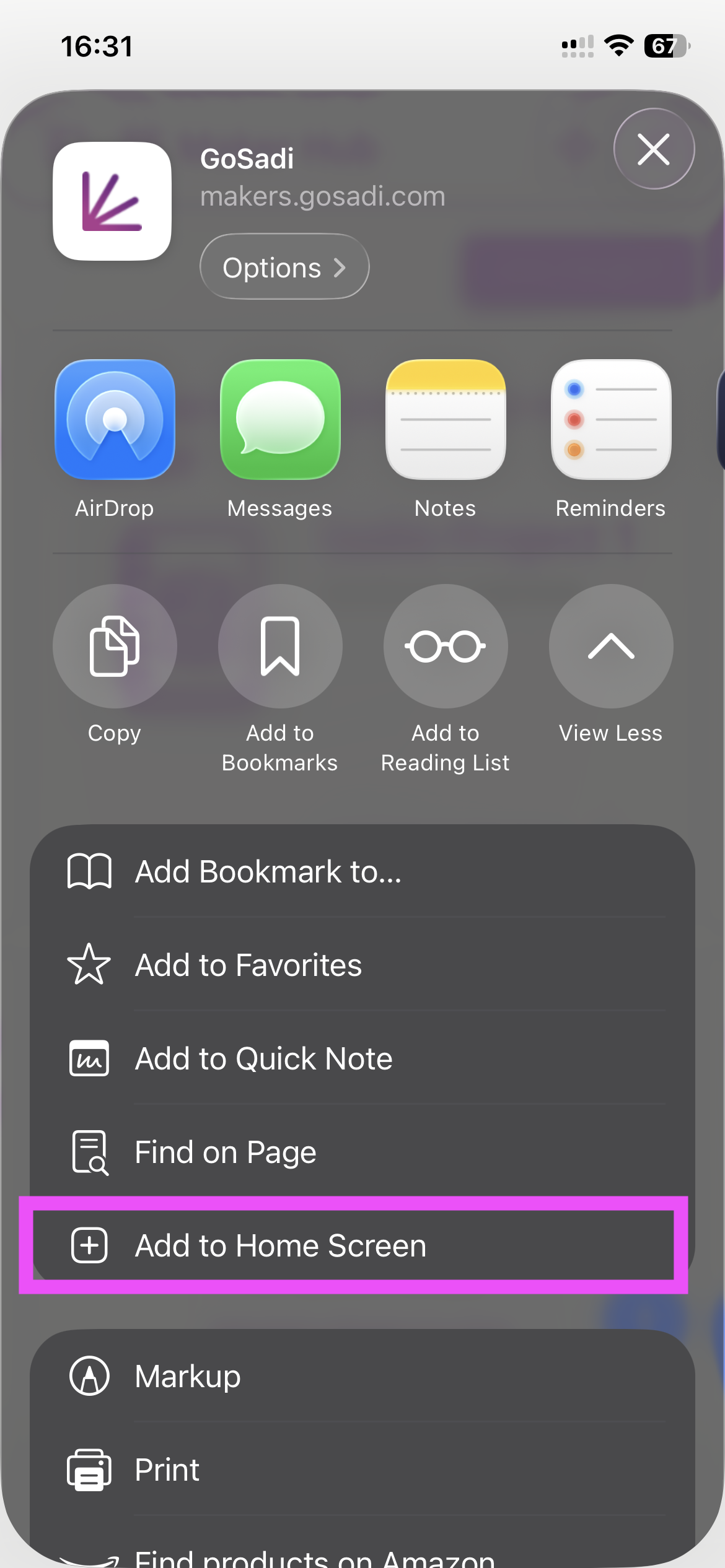
3. Look for the Add to Homescreen option
a. You might have to choose More to find it
Android
1. Click on the three dots at the top of your screen
2. Choose Save to Homescreen
To explore all the features and benefits that GoSadi has to offer, visit our website today!